Best AI Tools for Screen Printing Color Separations
Compare tools for editable color plates, underbases and print handoff, with clear limits on what AI and ordinary separation automation do.
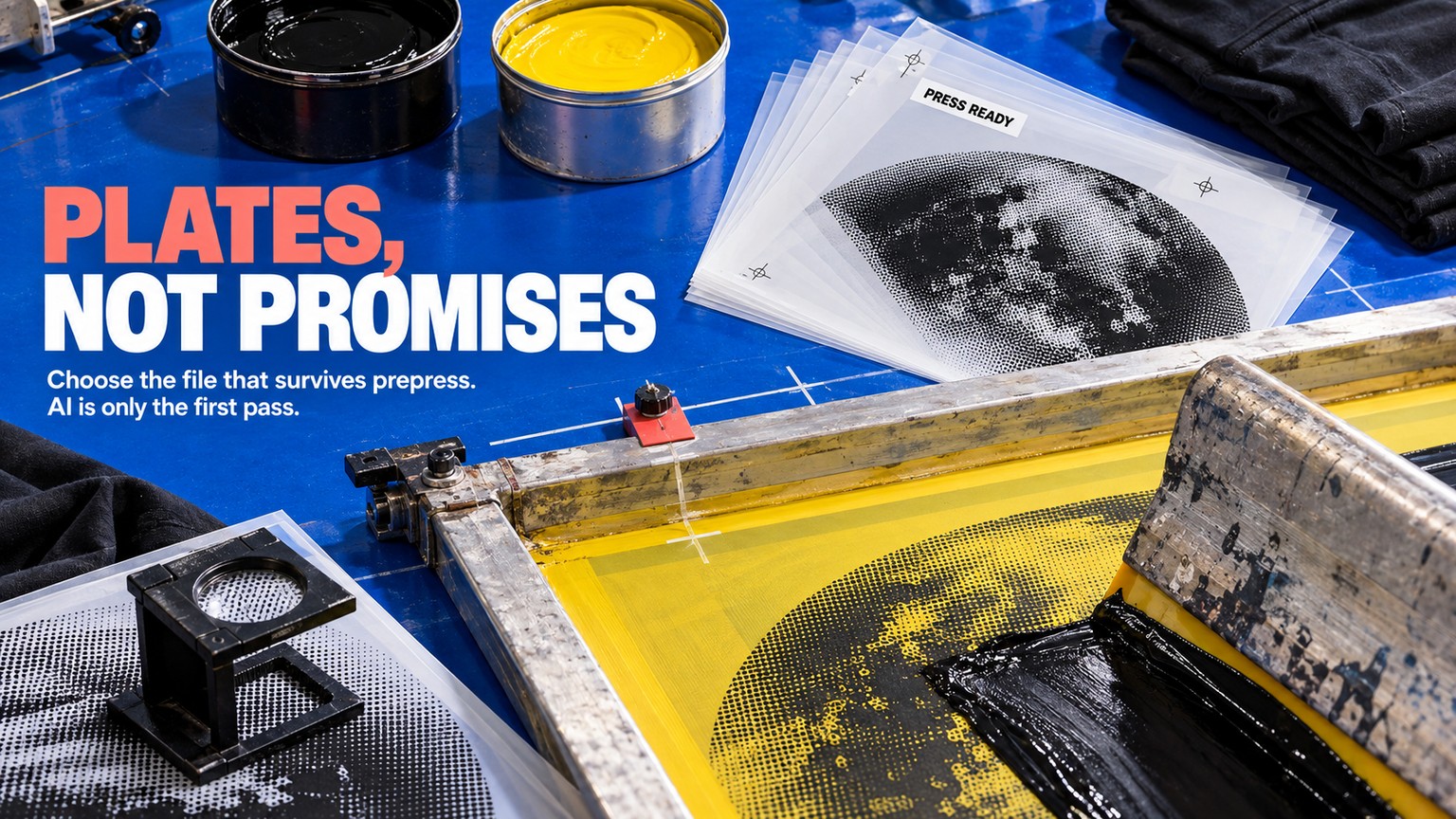
The best AI tools for screen printing color separations are not the tools with the loudest AI label. InkSplit is the best overall because its $49 Studio plan joins editable channels, underbase control, and a built-in halftone RIP; Separo is the strongest documented machine-learning alternative, while Texloom Studio is the cheapest serious trial.
Prices, plan terms, exports, and production controls were verified against each vendor's public pages on 12 September 2026. No hands-on output test is claimed. The ranking turns on a harder standard: what files reach prepress, what can still be corrected, and what work remains before a screen is burned.
Best AI Tools for Screen Printing Color Separations at a Glance
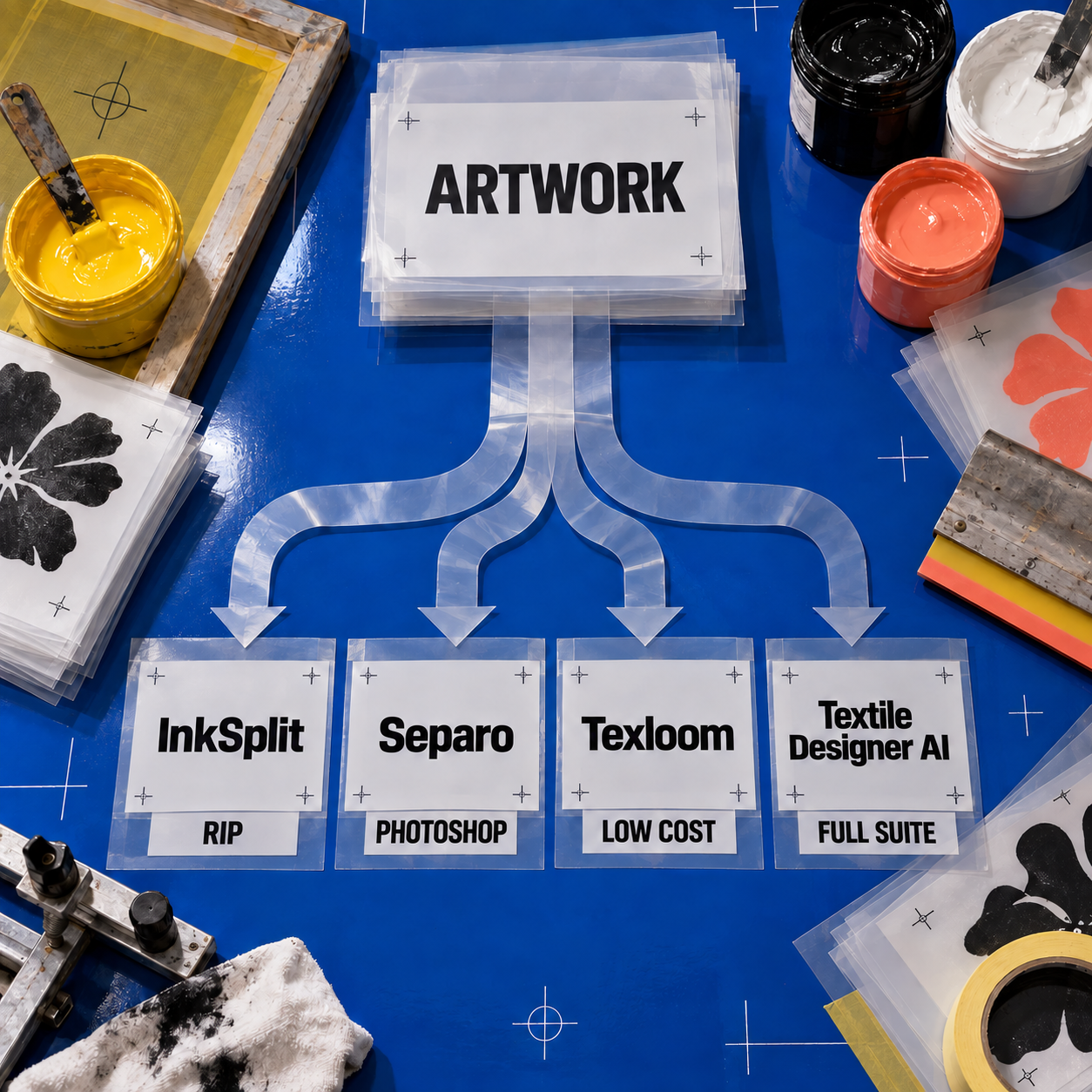
InkSplit is the safest overall choice for an apparel shop because it covers the widest documented path from an uploaded image to halftoned film. Separo wins when explicit machine learning and simulated-process separation matter more than an integrated RIP. Texloom Studio makes the strongest low-cost trial. Textile Designer AI fits a broader textile-design operation, but its missing underbase detail and data-use terms keep it fourth.
Those prices are not directly comparable. InkSplit charges up to 10 credits for the first full-project download, Separo limits simulated-process jobs by plan but leaves spot-color jobs unlimited, and Texloom lists Separation Studio at one credit per run. The cost of a separation only matters after the plates pass review.
AI Screen Printing Color Separation: What Counts as AI Here
The AI label is imprecise in this category. Some products use machine learning, some apply classical image-analysis algorithms, and some market ordinary automation as intelligent. All can save manual steps. They are not technically interchangeable.
Separo makes the clearest AI claim. Its current product page says the service combines machine-learning technology with screen-print separation experience. That claim is specific enough to classify Separo as a documented machine-learning separator, even though the company does not publish model architecture or training details.
Texloom Studio labels its separator as part of a Pro AI engine, but documents K-means as the core color-separation method. K-means groups pixels into a chosen number of color clusters. It is a useful machine-learning algorithm, but it is not a generative model and it does not understand press behavior the way a separator does. Texloom adds Pantone TCX matching, color reduction, and halftone generation around that clustering step.
Textile Designer AI explicitly says AI handles the transformation. The wider platform also includes generative and AI-assisted textile tools, so the label is central to the product rather than attached only to one button. Its separation page, however, gives less detail about the production controls behind the result than its industry page gives about outputs.
InkSplit documents advanced algorithms and intelligent controls, not a current AI model. Its user guide goes further: an underbase option named AI is described as a legacy choice routed to the tonal or solid generators. InkSplit still ranks first because a well-controlled automated plate pack is more useful than a less controllable output with a stronger AI claim.
That distinction matters when evaluating automated separation products. The algorithm can reduce colors, propose inks, and build masks. It cannot see the exposed screen, feel ink deposit on the garment, or know whether a fine halftone will survive a shop's mesh, emulsion, exposure, and press conditions. AI changes the first pass. The operator still approves the production system.
How These Tools Were Picked
Four products earned ranked sections because their current first-party pages document a screen-printing separation workflow, an output path, and public access or pricing. A product did not earn a place merely for generating attractive artwork, extracting a palette, or converting an image to CMYK.
The evaluation uses production questions that map directly to the handoff:
- Artwork fit: Does the tool accept flat raster art, vectors, photographs, or layered files, and does it disclose transformations such as downscaling?
- Plate structure: Does it create spot, simulated-process, CMYK, or textile color layers that match the intended press method?
- Editable output: Can a separator inspect and repair individual channels after automation?
- White ink: Does the product document an underbase, choke, tonal control, and highlight white where dark garments require them?
- Halftone and registration: Does it produce film-ready dots and marks, or does the job still need a separate RIP?
- Commercial terms: What does each run cost, how do credits behave, and how many people can use the plan?
- Correction wall: What production decision remains hidden, unsupported, or pushed into another application?
This is a priced-and-analyzed comparison, not a fabricated studio test. Any shop trial should use the same original artwork, final dimensions, garment color, target ink set, color count, and RIP assumptions in every product. Changing the source to flatter each separator destroys the comparison.
The same production-first standard matters across specialist visual AI. A decorative result can look finished while its underlying file is unusable, which is also the key distinction in the Pattrn-AI review for stained-glass patterns. For screen printing, the underlying artifact is not a connected vector pattern. It is a complete, editable, correctly aligned plate pack.
1. InkSplit: Best Overall for Apparel Screen Printing
InkSplit is the best overall choice because it keeps more of the apparel prepress job in one browser workspace than any other ranked product. It handles simulated-process, spot-color, CMYK-process, and DTF work, then exposes the base, highlight, channels, print preview, and film controls that determine whether the separation can move forward.
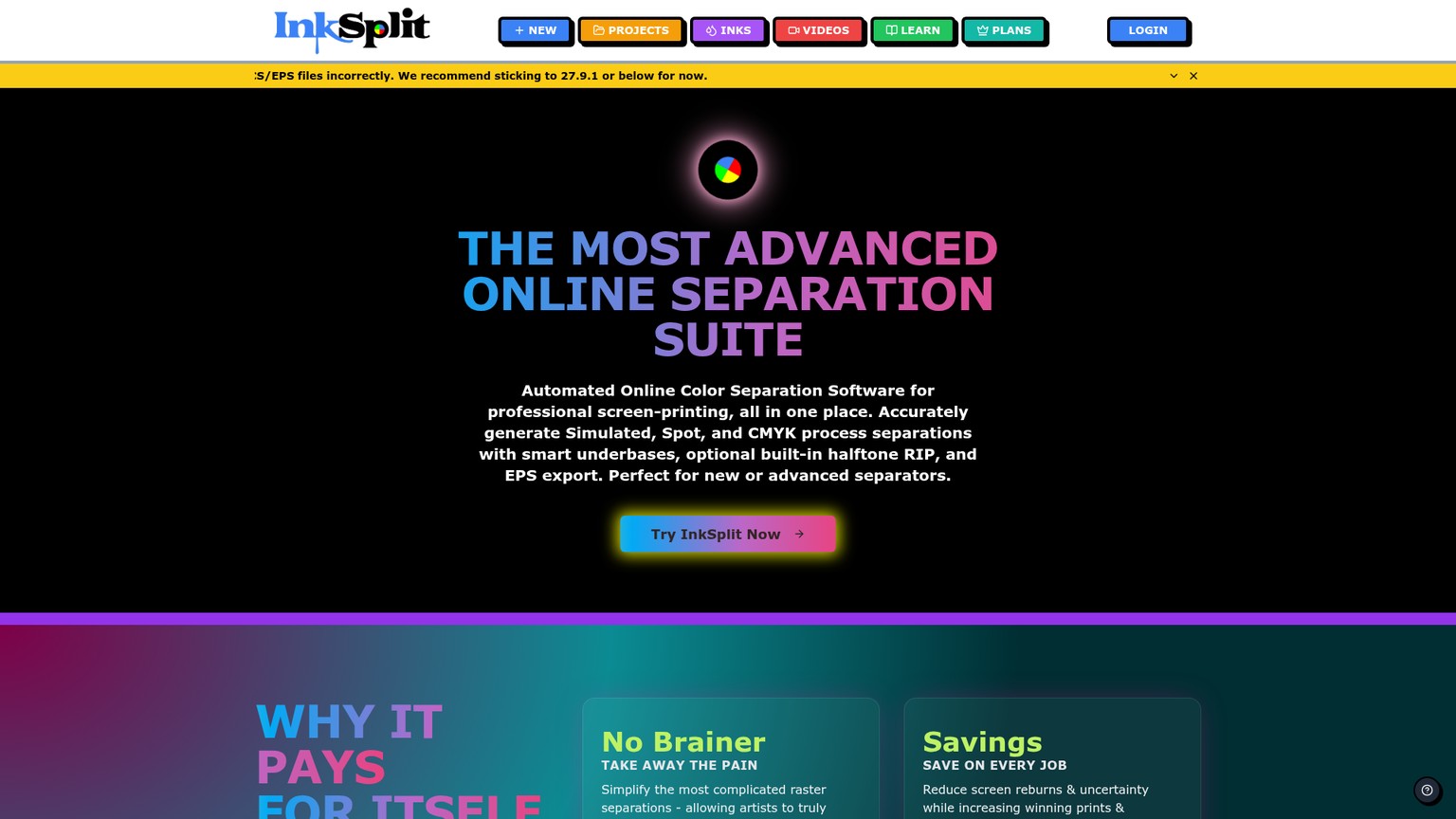
The strongest use case is a small or growing garment shop receiving mixed customer artwork. One order may be a crisp spot-color logo. The next may be a photographic illustration on a black shirt. InkSplit can change the separation method, target an extracted ink count, map colors to an ink library, and preview the composite over the selected garment color without moving the project between several utilities.
What InkSplit Gets Right
The underbase controls are the decisive advantage. InkSplit offers tonal or solid bases, lets the operator switch the base off, and exposes softness, contrast, and choke. A tonal underbase follows image lightness instead of putting a uniform block of white beneath every printed pixel. Choke pulls that white plate slightly inside the color edge so minor press movement is less likely to reveal a white halo.
Highlight white is separate from the base. Strength, chroma protection, ceiling, and threshold controls let the operator preserve bright near-white details without flooding colorful areas with more white ink. That separation between foundation white and finishing white is exactly the kind of production distinction a one-click composite can hide.
Channel editing is equally practical. The documented workspace includes cleanup, add, subtract, duplicate, delete, opacity, and levels for individual plates. Brush, eraser, lasso, rectangle, ellipse, and magic-wand tools let an operator repair a local edge or move density between channels without rebuilding the entire separation. A live composite remains visible while those changes are made.
The output path is unusually complete. InkSplit exports a ZIP of grayscale channel PNGs, a DCS2 EPS bundle, a single-channel PNG, or a halftone RIP ZIP. On Studio and Print Pro, the built-in RIP exposes LPI, DPI, dot shape, automatic, split, or manual screen angles, film size, design size, and registration marks. That is why Studio, not Creative, is the meaningful comparison point for a shop trying to replace both separation and basic film preparation. All of those capabilities are documented in the current InkSplit user guide.
Where InkSplit Stops
InkSplit is automation-led, but the vendor does not currently document an AI or machine-learning model. Buyers who need a substantiated AI procurement claim should not infer one from words such as smart or intelligent. The product earns first place on production control, not AI branding.
The browser also transforms large inputs. It accepts PNG, JPG, GIF, WEBP, and SVG up to 50 MB, but rasterizes SVG and scales artwork over 4000 pixels on its longest side down to 4000 pixels. Files over 10 MB may be re-encoded to WebP. That may be acceptable for many garment jobs, but a production artist should verify final physical size and effective resolution before approving fine detail.
Layered PSD is not listed as a direct export. DCS2 EPS is the editable bridge into Photoshop or another compatible RIP workflow, while PNG ZIP is the transparent per-channel route. InkSplit's own pricing page currently warns that Photoshop 27.10 reads DCS/EPS incorrectly and recommends 27.9.1 or below. A shop standardized on the affected Photoshop release should resolve that compatibility issue before moving a live queue.
InkSplit Pricing, Verified 12 September 2026
The live plan page lists Starter at free with 30 starting credits, up to 10 credits for the first full-project download, 3 credits for a single-channel download, unlimited variations after that initial download, and up to 5 saved ink profiles. Purchased credits added to Starter roll over.
Creative is $19 per month for 200 credits, about 20 jobs, up to 10 saved profiles, and custom inks. Studio is $49 per month for 600 credits, about 60 jobs, up to 15 saved profiles, and the built-in RIP. Print Pro is $99 per month for unlimited credits and downloads, multi-login team sessions, and dedicated priority support.
At the 10-credit project cap, Creative covers 20 full project downloads at $0.95 each. Studio covers 60 at about $0.82 each. The small per-project difference does not decide the upgrade. Built-in RIP output and the larger monthly pool do.
Best for: Apparel shops separating both graphic and photographic art, especially on dark garments.
Standout: The deepest documented combination of base, highlight-white, channel-correction, and film-output control.
Pricing: Free Starter; Creative $19/mo; Studio $49/mo; Print Pro $99/mo.
Free trial: 30 starting credits on Starter.
- Tonal and solid underbases with choke, softness, and contrast controls.
- Separate highlight-white controls and live garment preview.
- Local channel editing with selections, brush, eraser, opacity, and levels.
- Built-in halftone RIP with registration marks on Studio and Print Pro.
- Spot, simulated-process, CMYK-process, and DTF paths in one browser tool.
- No current first-party documentation of an active AI or machine-learning model.
- Large files may be downscaled or re-encoded before separation.
- No layered PSD export is listed.
- Built-in RIP requires at least the $49 Studio plan.
A Practical InkSplit First Pass
Lock the source
Prepare one source at final intended dimensions. Record the garment color, permitted inks, target color count, and the RIP or direct-to-screen destination before uploading.
Choose the print method
Use spot color for hard-edged graphic art, simulated process for photographic blending with spot inks, or CMYK when the press workflow is explicitly built around process inks. Do not let the default choose the production method by accident.
Build the white plates
Select the garment color, compare tonal and solid base behavior, set choke for the shop's registration tolerance, and inspect highlight white separately. Zoom into pale edges and small reversed details.
Inspect every channel
Solo each plate. Remove isolated noise, repair missing edge detail, adjust density, and check whether channel blending creates mud or unwanted overprint. Keep edits local when the rest of the separation is sound.
Prepare the handoff
If using the built-in RIP, confirm the shop's film size, halftone settings, angles, design size, and registration marks. Otherwise export DCS2 EPS or channel PNGs into the established RIP workflow.
Save the approved state
Keep the project, ink choices, print order, base setup, and final export together so a reorder starts from an approved configuration instead of a new automatic pass.
2. Separo: Best Documented Machine-Learning Separator
Separo is the best choice when explicit machine learning and automated simulated-process work are the priority. Its official product page names machine-learning technology, and its workflow is designed to turn difficult photographic art into a separation that can be adjusted in Photoshop or sent to an existing RIP.
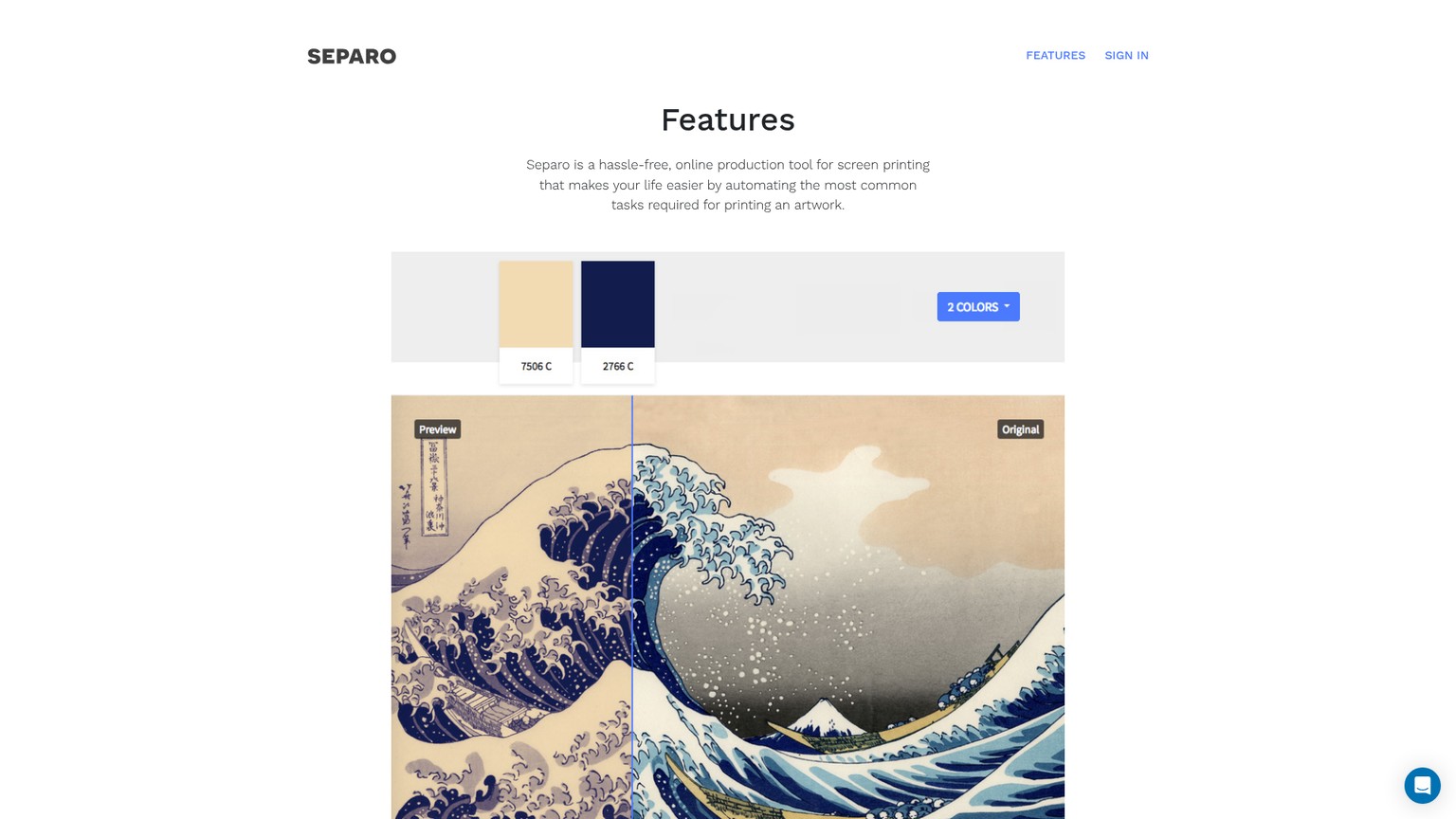
The ideal Separo buyer already has a stable output stack. The shop wants the difficult color-selection and simulated-process pass handled in the cloud, but it does not expect the separator to replace Photoshop or the RIP. That is a narrower promise than InkSplit's all-in-one direction, and it can be a cleaner fit for an established prepress room.
Separo detects an ink combination from the uploaded image, supports PMS matching, and lets the user constrain matching to inks already in stock. Colors can be added, removed, or changed while the proof updates. Its feature documentation covers quick spot-color jobs and more complex simulated-process separations, with color-gamut reduction for the latter.
Its dark-garment documentation is strong. Every separation includes an underbase, and users can customize the dot-gain curve, underbase choke, color trapping, and other production settings. Color trapping creates controlled overlap between adjacent inks so small registration movement is less likely to open a garment-colored gap.
Input support includes EPS, Adobe Illustrator AI, Adobe Photoshop PSD, and other formats. The processing path is a 300-DPI raster workflow, and the documented standard output is multichannel EPS. Separo publishes downloadable PSD sample files, but its feature page does not promise PSD as the normal account export. Treat the EPS contract as the dependable handoff until the vendor confirms otherwise.
The current wall is the RIP. Separo's feature page still says an integrated cloud ripping solution is coming soon. A user can move the separations into Photoshop or go to an external RIP, but halftone film remains another system. That extra handoff is the main reason Separo sits behind InkSplit for a new shop.
Separo Pricing, Verified 12 September 2026
The live Separo page lists Starter at $49 per month with unlimited proofs, unlimited spot-color jobs, and 10 simulated-process jobs. Plus is $149 per month with unlimited proofs, unlimited spot-color jobs, 40 simulated-process jobs, and advanced separation options. Enterprise is contact sales. Both public paid plans include a 30-day free trial and a money-back guarantee.
Starter's included simulated-process allowance works out to $4.90 per job. Plus works out to about $3.73. Those figures exclude Photoshop correction time and external RIP cost, but spot-color jobs have no stated monthly count cap on either tier.
Best for: Shops with Photoshop and a trusted RIP that want explicit machine-learning help on simulated-process art.
Standout: Stock-ink matching, proofing, and underbase plus trapping controls around a documented machine-learning engine.
Pricing: Starter $49/mo; Plus $149/mo; Enterprise contact sales.
Free trial: 30 days on Starter and Plus.
- The clearest documented machine-learning claim in the ranked field.
- Unlimited spot-color jobs and proofs on both public paid plans.
- Underbase, choke, dot-gain, and trapping controls are explicitly documented.
- Accepts EPS, AI, and PSD inputs and exports multichannel EPS.
- Public sample separations and printed results can be inspected before signup.
- Integrated cloud RIP is still described as coming soon.
- Simulated-process jobs are capped at 10 or 40 per month.
- The documented raster workflow tops out at 300 DPI.
- Standard PSD output is not promised even though sample PSD files are available.
3. Texloom Studio: Best Low-Cost Textile Separation Trial
Texloom Studio is the best low-cost way to evaluate browser-based separation on flat-color textile artwork. The vendor gives a free account 100 starter credits, lists Separation Studio at one credit per run, and documents layered PSD, TIFF, and PNG output.
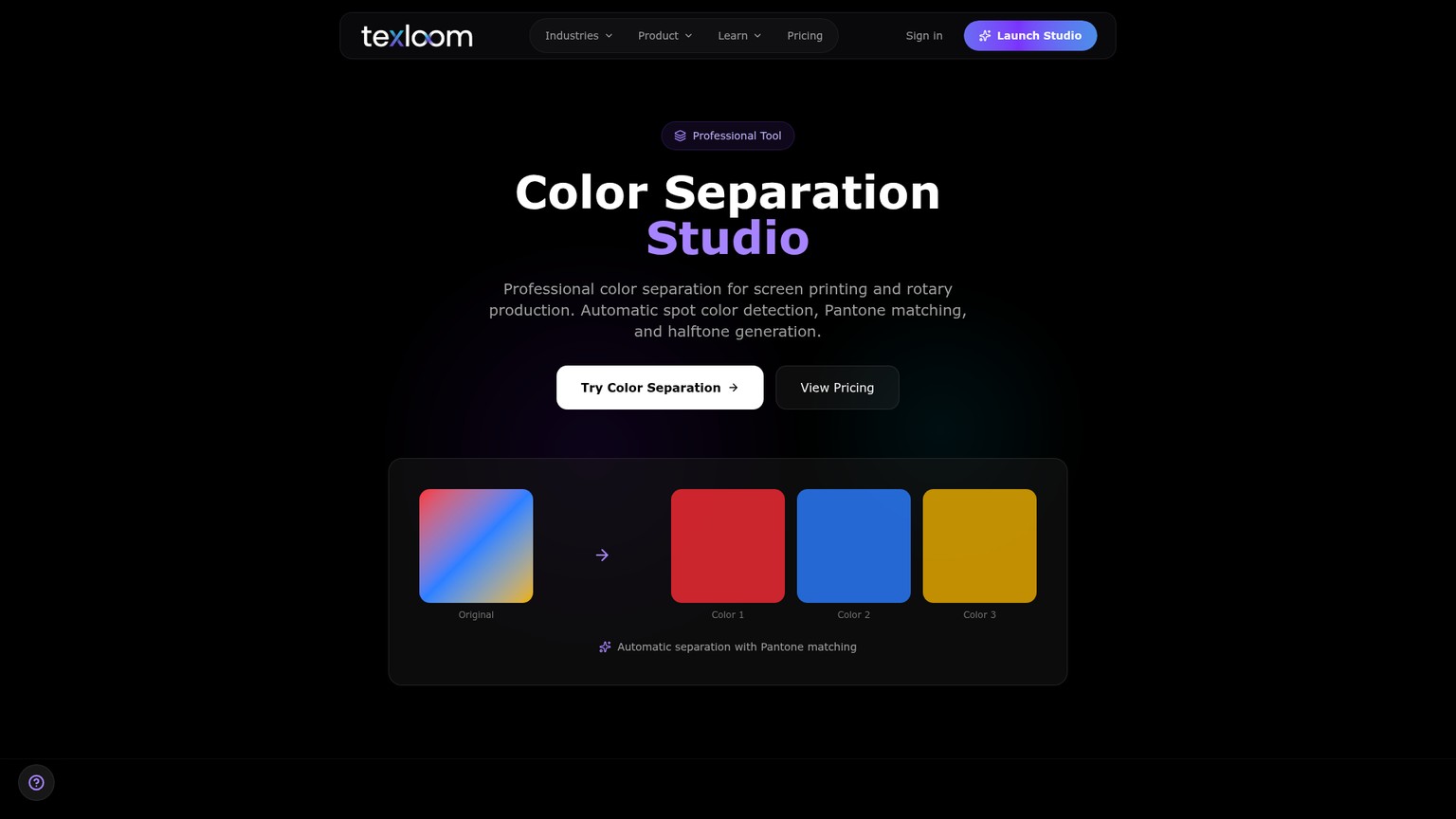
Texloom's core method is unusually transparent. K-means clustering groups the image into color regions, then CIEDE2000 matching maps those colors toward Pantone TCX references. The tool supports up to 12 colors, color reduction, and halftone controls for LPI, angle, and dot shape. Its output ceiling is 300 DPI.
The product calls the free separator part of its Pro AI engine. The documented separation method, however, is classical K-means clustering. That is not a criticism. A well-implemented clustering workflow can be excellent for a clean pattern, flat illustration, or textile motif with intentional color regions. It is simply different from claiming that a generative model understands how the design should print.
The strongest output is layered PSD. Each color can also leave as an individual TIFF, and the page lists a combined PNG option. The free-tool flow is narrower: JPG, PNG, or WEBP goes in, and separate channel PNGs plus a Pantone specification sheet come out. Flat-color designs are explicitly described as the best fit; photographic areas are routed through automatic halftones.
Texloom does not document the apparel-specific white-ink depth that puts InkSplit first. Its current separation pages do not spell out a dedicated underbase generator, highlight-white plate, registration-mark export, or built-in RIP. A shop can still use its separated layers in a downstream editor or RIP, but those missing public controls should be treated as work remaining, not quietly assumed.
Texloom Pricing, Verified 12 September 2026
The free signup includes 100 credits with no card. The current pricing page lists Starter with 300 credits at $15 month-to-month or $10 per month effective when $120 is billed annually. Professional has 900 credits at $35 month-to-month or $24 per month effective when $290 is billed annually. Studio has 2400 credits at $83 month-to-month or $58 per month effective when $690 is billed annually. Enterprise uses custom credit volume and contact-sales pricing.
Purchased credits never expire. Monthly plan credits refresh. At one credit per Separation Studio run, the free allocation covers 100 runs and the $15 Starter card implies $0.05 per run. The pricing page also uses inconsistent Starter language: its plan cards show paid Starter while its comparison grid labels a Starter column Free forever. The 100 one-time signup credits are the least ambiguous place to begin.
Texloom has another advantage for confidential artwork. Its privacy policy says inputs and outputs are not used to train its models or third-party inference providers, and that the providers are contractually barred from doing so. That is a meaningful procurement difference from Textile Designer AI.
Best for: Flat artwork, textile motifs, Pantone-oriented layers, and a low-cost first evaluation.
Standout: One-credit separation runs, transparent K-means documentation, and layered PSD export.
Pricing: 100 starter credits; Starter $15/mo; Professional $35/mo; Studio $83/mo; Enterprise contact sales. Annual billing displays lower effective monthly rates.
Free trial: 100 starter credits with no card.
- Very low documented run cost and a useful no-card starting allocation.
- K-means, CIEDE2000, color count, and output limits are described plainly.
- Layered PSD, TIFF, and PNG export paths are documented.
- Adjustable halftone LPI, angle, and dot shape.
- Public policy says designs are not used for model training.
- Best fit is flat-color work, not necessarily difficult apparel simulated process.
- No dedicated underbase, highlight-white, registration-mark, or RIP contract is visible on the separation pages.
- The public pricing page uses conflicting Starter labels.
- A cheap generated run still needs a press-specific acceptance check.
4. Textile Designer AI: Best for a Wider Textile Workflow
Textile Designer AI is the best fit when color separation is one stage in a broader textile-design pipeline. The platform explicitly documents AI processing and combines separation with repeat creation, color matching, object layering, print preparation, upscaling, vectorization, and other textile tools.
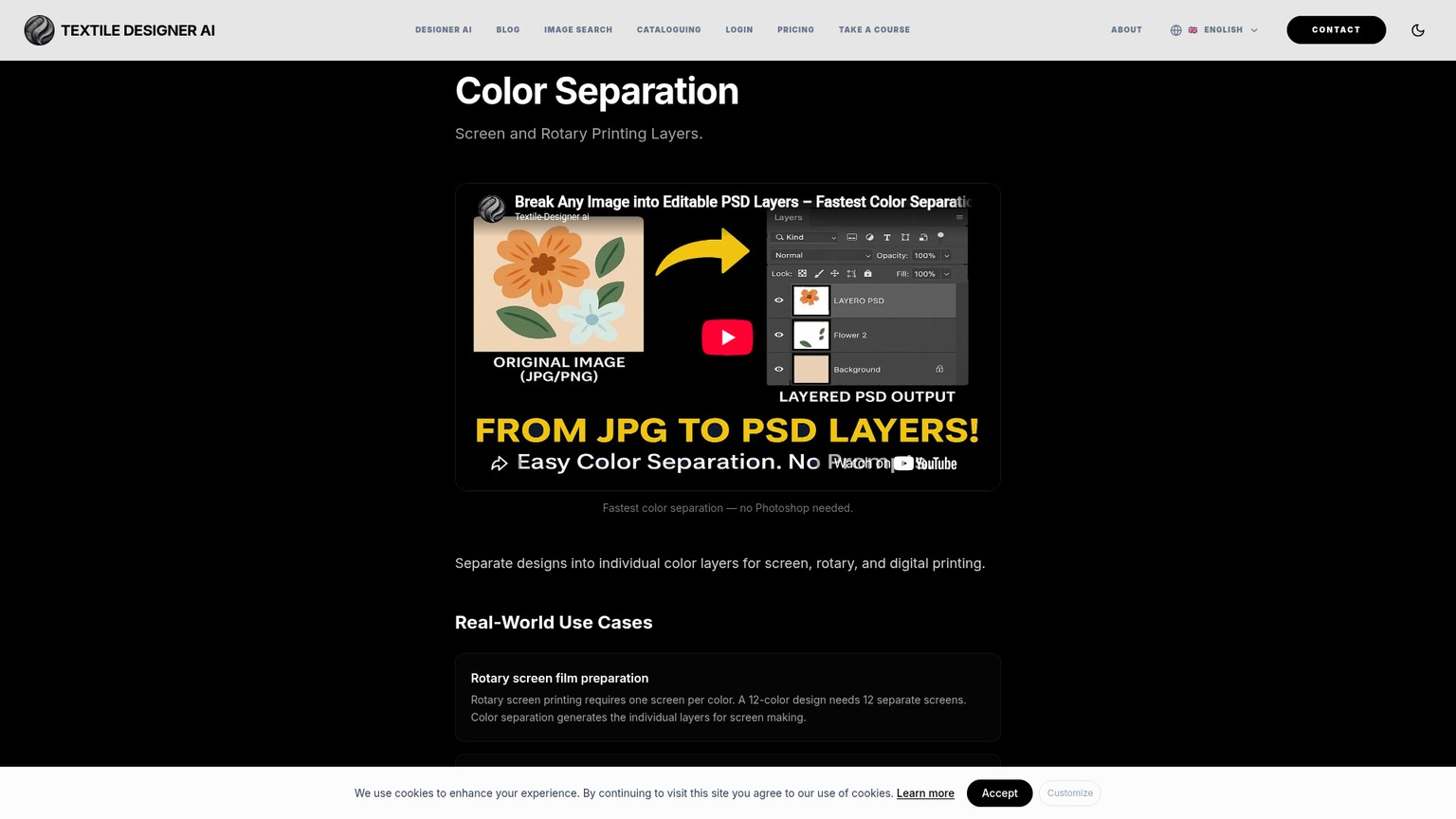
The product makes sense for a textile manufacturer or design office receiving patterns that still need development before separation. A source can move through motif work, seamless repeat preparation, Pantone TCX matching, color reduction, and layered output inside one account. That scope is much wider than a screen-print shop separator.
Its screen-printing page documents PSD with individual layers, TIFF, or PNG output. It also says the separator supports halftone conversion with configurable dot size, while adjacent tools can match Pantone TCX colors, build seamless repeats, prepare film-ready resolution, and vectorize artwork to SVG. The separation input itself is PNG or JPEG up to 50 MB.
The production gap is specificity. The current pages do not document a dedicated underbase or highlight-white generator, registration-mark output, a built-in RIP, or an exact credit cost for the feature named Color Separation. The price table has a 10-credit Color Layering row, but the product page calls the tool Color Separation. Those names may refer to the same workflow, yet the public contract does not say so clearly enough to calculate a dependable per-separation cost.
The account terms also demand attention. Textile Designer AI's Terms of Service say the user retains ownership of original uploads, then grants Scientia AI a perpetual, irrevocable, worldwide, royalty-free, sublicensable license to use uploads and outputs for model training, testing, validation, and improvement. The training license survives account termination. Enterprise users may request an opt-out before uploading designs. A studio handling unreleased licensed artwork should resolve that term before a trial, not after the file is uploaded.
Textile Designer AI Pricing, Verified 12 September 2026
The current pricing page lists Unlimited Solo at $275 per month for one seat and all 20-plus tools under a fair-use policy. The credit plans currently display reduced amounts alongside higher reference prices: Basic is $14.99 per month against $19.99 with 275 credits; Standard is $75 against $99 with 1500 credits; Premium is $225 against $299 with 3600 credits and unlimited runs on named core tools. All three individual credit plans permit one user.
Teams Basic displays $750 against $999 with 11750 monthly credits and unlimited users under single-IP provisioning. Teams Standard displays $955 against $1219 with 14000 credits, up to 30 users, named unlimited core tools, and single-IP provisioning. Teams Premium displays $1199 against $1399 with 16750 credits, unlimited users, named unlimited core tools, single-IP provisioning, and priority email and phone support. Enterprise is a contact-sales package.
Monthly unused credits expire after 30 days and are replaced at the next billing cycle. The pricing FAQ says unused yearly credits carry forward only when the next year is purchased. No general free trial is stated on the public pricing page.
Best for: Textile design teams that need patterns, repeats, color work, and production preparation in one suite.
Standout: The broadest documented textile workflow and explicit AI processing.
Pricing: Basic $14.99/mo displayed; Standard $75/mo displayed; Premium $225/mo displayed; Unlimited Solo $275/mo; team plans from $750; Enterprise package available.
Free trial: Not stated on the public pricing page.
- Explicit AI processing rather than an implied smart label.
- PSD, TIFF, and PNG separation outputs are documented.
- Color matching, repeats, object layering, print preparation, and vectorization surround the separator.
- Individual and team plan ladders cover solo designers through large production groups.
- Dedicated underbase, highlight-white, registration-mark, and RIP controls are not documented.
- The exact credit cost for the feature named Color Separation is unclear.
- Monthly credits expire, and most individual plans allow one user.
- Standard terms permit training on uploaded designs unless an Enterprise opt-out is arranged before upload.
Who Should Pick What
The right choice follows the handoff, not the artwork preview.
Pick InkSplit Studio when a small apparel shop wants one browser path through spot or simulated-process separation, dark-garment base work, local channel correction, and halftoned film. Creative is enough when the shop already owns a trusted RIP, but Studio is the tier that changes the workflow.
Pick Separo when simulated-process quality is the expensive bottleneck and the shop is comfortable finishing in Photoshop and a separate RIP. Its machine-learning claim is explicit, and its allowance model is predictable. Spot-heavy shops get more value because both paid plans list unlimited spot-color jobs.
Pick Texloom Studio when source art is flat, textile-oriented, and Pantone-led, or when the shop needs the cheapest credible trial before committing. It is also the cleaner privacy choice for proprietary uploads among the two textile suites because its policy disclaims training use.
Pick Textile Designer AI when the work starts earlier than separation. A textile team that must extract motifs, build repeats, create colorways, prepare files, and then separate them can justify the broader suite. A T-shirt shop buying only for underbase and film output is paying for breadth while still missing documented press controls.
The rule that flips the choice is simple: if the tool cannot deliver or preserve the shop's required underbase, editable channels, halftones, registration marks, and RIP handoff, its AI capability does not rescue the purchase. Move to the product that leaves fewer unsupported production decisions.
Screen Printing Underbase: The Control That Changes the Ranking
An underbase is the white foundation printed beneath color on a dark garment. It changes brightness, ink deposit, edge tolerance, and the feel of the finished print. A separator that merely produces color channels is incomplete for this job.
InkSplit offers the deepest documented base system in the ranked field. The operator can choose tonal or solid behavior, change softness and contrast, choke the plate, preview it over the garment, and create a separate highlight-white channel. Separo puts an underbase in every separation and exposes choke alongside dot gain and trapping. Texloom Studio and Textile Designer AI do not document comparable dedicated controls on their current separation pages.
A solid base is useful when flat opaque coverage is the goal. A tonal base reduces white beneath shadows and blended areas, which can preserve a softer visual transition and avoid unnecessary deposit. Neither is universally correct. Garment color, ink opacity, mesh, flash behavior, and the art itself determine the better starting point.
Choke is equally practical. Pulling the base inside the color edge creates tolerance for small registration movement. Too much choke can weaken a fine edge. Too little can reveal a white fringe. Software can expose the control, but the shop's press conditions decide the setting.
Screen Printing Separation Files: What Must Leave the Tool
The exported files should preserve each ink plate as an inspectable channel and carry enough information to reach the shop's output system without reconstruction. A flattened color preview is not a separation deliverable.
The package should contain the color plates in print order, the underbase when printing on a dark substrate, a separate highlight-white plate when the art calls for it, named inks, final dimensions, and a clear route to halftones and registration marks. The exact container can differ.
InkSplit offers channel PNGs, DCS2 EPS, and a RIP ZIP. Separo documents multichannel EPS. Texloom Studio lists layered PSD, individual TIFF, and combined PNG. Textile Designer AI lists PSD layers, TIFF, and PNG. These formats are not equivalent: a PSD can preserve editable channels, a TIFF can carry high-quality raster data, a DCS2 EPS can preserve spot channels for a compatible workflow, and a folder of PNG plates depends on naming and downstream assembly.
Adobe's spot-color documentation confirms why channel structure matters. A spot channel represents its own press plate, and PSD or TIFF can preserve those channels. The screen preview color and solidity help visualization but do not by themselves change the printed separation. Density lives in the grayscale content of the plate.
Ask for one sample export before purchase and open it in the application that will output film or feed direct-to-screen. Confirm channel names, dimensions, transparency, plate density, print order, registration marks, and whether a local correction survives save and reopen. File-extension compatibility is not the same as workflow compatibility.
Automatic Color Separation Software Is a First Pass
Automation should move labor from building every mask to reviewing the decisions that affect print. Treating it as a no-review button is how attractive previews become re-burned screens.
The common corrections are concrete. Remove isolated pixels that will not hold. Restore small details lost during color reduction. Clean edge contamination between channels. Pull highlight white out of chromatic areas. Adjust tonal density that will plug or disappear. Choke the base. Confirm print order. Check halftone angles and dot structure against the output workflow. Add registration marks where the export path does not.
Automation is most valuable when it leaves these choices editable. InkSplit keeps many of them inside the separator. Separo deliberately hands the result into Photoshop or a RIP. Texloom and Textile Designer AI provide layered outputs, but their public pages leave more press-specific work unstated.
The craft bar is not a pixel-perfect match to the RGB source. It is a stable print made from the intended inks on the intended garment, with detail that survives exposure and registration. Color reduction that improves that result is a success even when the composite is less literal. A beautiful preview with unprintable plates is a failure.
Color Separation Software for Small Shops: Compare Accepted-Job Cost
Small shops should compare separators by accepted-job cost, not subscription price or generated-run price. Accepted-job cost is total software spend plus correction and handoff labor, divided by the plate packs that pass prepress.
InkSplit Creative can authorize 20 full project downloads at the 10-credit cap for $19, or $0.95 per project. Studio can authorize 60 for $49, about $0.82 each, and adds the built-in RIP. For a small shop, the more important breakpoint is not volume. It is whether Studio removes a paid RIP or repeated export step.
Separo Starter's 10 simulated-process jobs make its included allowance $4.90 each. Plus lowers that to about $3.73 across 40 jobs. Both leave spot-color jobs unlimited, so a shop's job mix changes the economics sharply. Correction and RIP remain outside those figures.
Texloom lists Separation Studio at one credit. Its 100-credit free allocation therefore supports 100 runs, and the $15 monthly Starter card with 300 credits implies $0.05 per run. That number is appealing and incomplete. If the output still needs a manually built underbase, registration setup, and extended channel cleanup, labor overwhelms the credit cost.
Free Color Separation Software for Screen Printing
Free access is useful for evaluating output, but none of these products offers an unlimited, fully documented separation-plus-RIP workflow at no cost.
Texloom Studio has the largest numeric starting allowance. A no-card account includes 100 credits, and Separation Studio is listed at one credit per run. Use that pool on representative work, not a stack of easy logos. Its flat-color bias makes it a sensible first check for spot-oriented textile art.
InkSplit Starter is the stronger apparel workflow trial. It includes 30 credits and makes the underbase, highlight, channel tools, and exports visible. The built-in RIP remains a Studio feature, so the free tier evaluates separation and editing more directly than final film output.
Separo offers the longest time-boxed trial. Both paid plans include 30 days. This is the better route for a shop that wants to compare several simulated-process files inside an existing Photoshop and RIP setup.
Separation Studio NXT offers a downloadable full-featured trial. It is not an AI product, but it is the relevant free-download benchmark for a local Mac or Windows workflow. Avoid unofficial downloads and abandoned copies. Prepress software sits too close to live production to gamble on unknown builds.
The Ones to Avoid, and the Conventional Benchmarks
Avoid any product that stops at a pretty recolored image, hides individual plates, or cannot explain what file leaves the service. Palette extraction alone is not separation. Background removal is not an underbase. A halftone visual effect is not a RIP-ready screen.
Also avoid treating the word AI as a quality certificate. Separo documents machine learning. Texloom describes K-means. Textile Designer AI states AI processing. InkSplit does not substantiate an active AI model. Those are different technical claims, and none proves that an output will hold on press.
Two conventional products set useful benchmarks without belonging in the AI ranking.
Adobe Photoshop: The Manual Correction Benchmark
Adobe Photoshop is the channel-editing benchmark, not an automatic AI screen-printing separator. It lets a production artist create spot channels, convert alpha channels into spot channels, paint density into or out of a plate, reorder spot channels, and preserve them in PSD or TIFF.
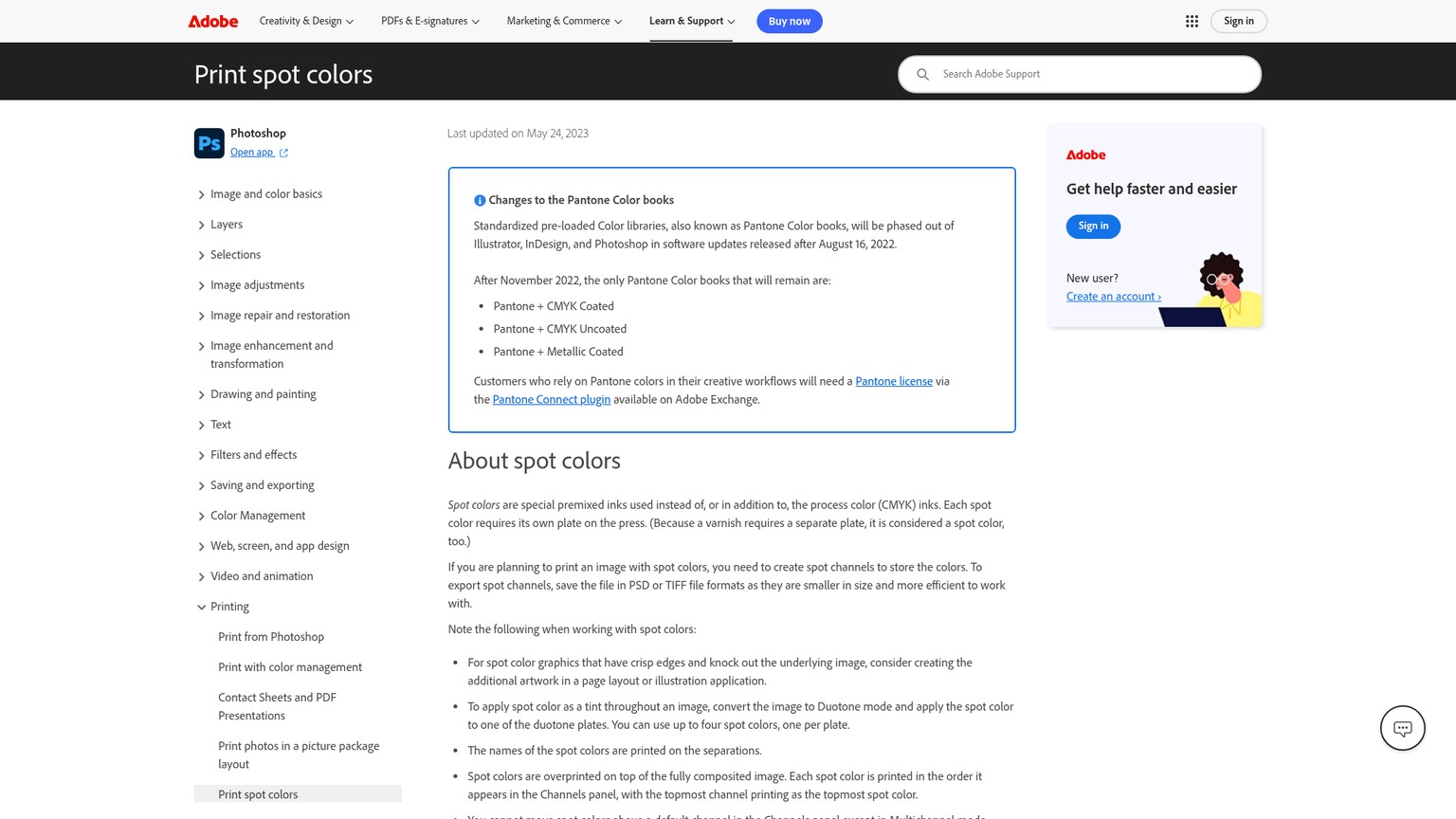
That control makes Photoshop the place many automated separations go for repair. It also explains the skill barrier automation is trying to reduce. The user must know which pixels belong on which plate, how gray values translate into ink density, how colors interact, and how the file will reach a RIP. Photoshop supplies the instruments, not the screen-print decision.
Best for: Manual channel correction and custom separation work by an experienced production artist.
Standout: Direct control over spot-channel masks and density.
Pricing: Not ranked or priced here because Photoshop is the correction benchmark, not the automatic separator purchase.
Free trial: Check Adobe's current plan page for the applicable offer.
- Precise local control over every channel.
- PSD and TIFF preserve spot-channel workflows.
- Fits established prepress and retouching practice.
- Does not supply a purpose-built automatic screen-print separation workflow by itself.
- Quality depends heavily on operator knowledge.
- RIP output and shop calibration remain separate concerns.
Separation Studio NXT: The Conventional Automation Benchmark
Separation Studio NXT is the strongest conventional automated benchmark because it is built specifically for screen printers. It auto-detects source type, creates simulated-process or raster spot-color separations, includes one-click underbase with choke and spread, and can save EPS with press marks for an external RIP.
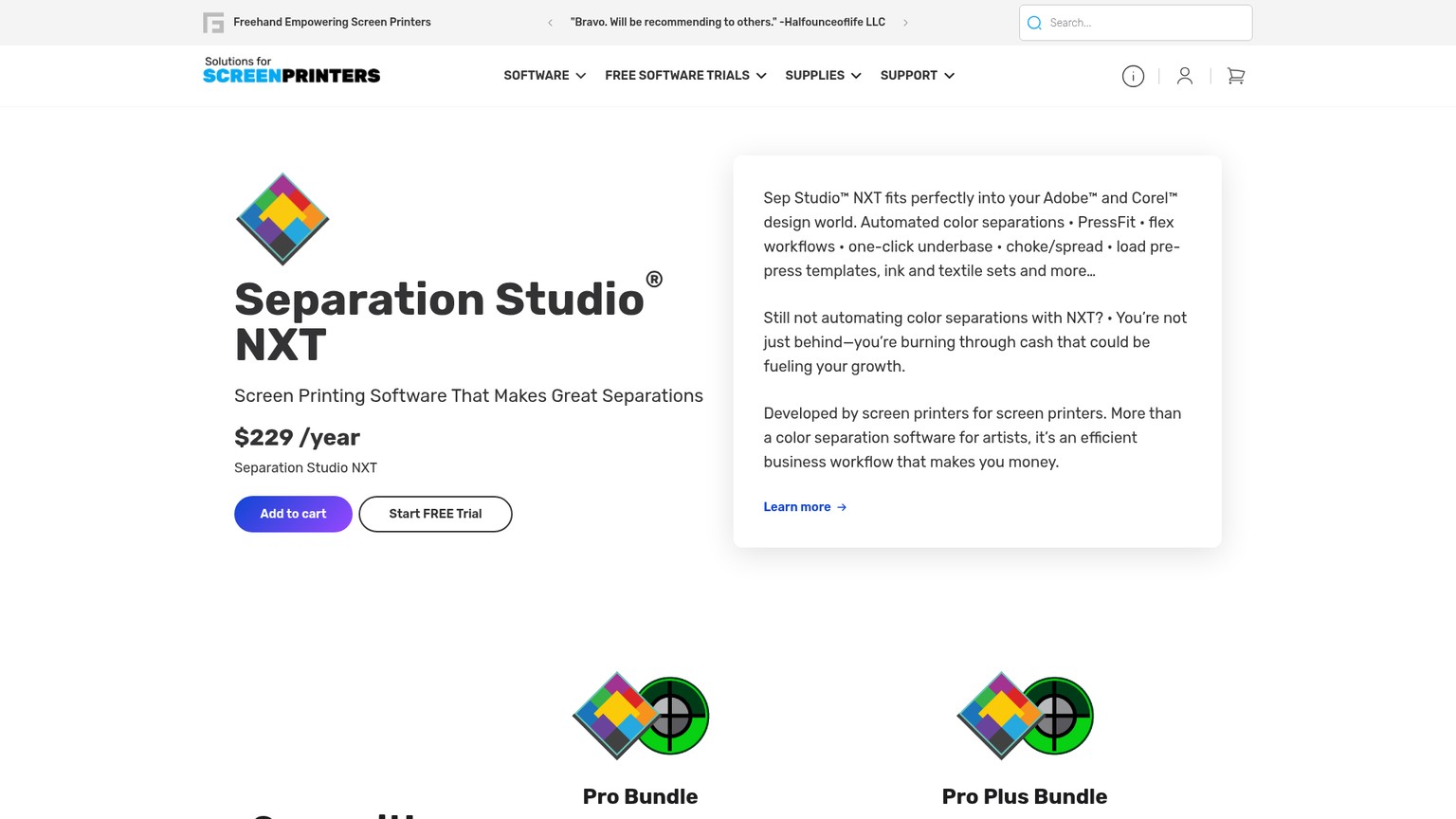
Its current product page also documents custom press, textile, and ink libraries, Mac and Windows downloads, and import into Adobe, Corel, or another graphics application. The software costs $229 per year, renews automatically, includes updates and support, and has a full-featured trial. A bundle with AccuRIP is available, but the standalone product can hand off to other RIPs.
NXT is not ranked above the online products because its page does not document AI or machine learning. It belongs in the buying exercise because its underbase, press-mark, library, and RIP-flexibility claims establish the production bar an AI-labeled challenger should meet.
Best for: Shops wanting local purpose-built automation and control over the RIP handoff.
Standout: Screen-print-specific underbase, press libraries, and EPS press-mark output.
Pricing: $229/yr for Separation Studio NXT; other bundles are separate.
Free trial: Full-featured downloadable trial.
- Purpose-built simulated-process and raster spot-color engines.
- One-click underbase plus choke and spread.
- EPS output preserves press marks for a downstream RIP.
- Runs locally on Mac and Windows.
- No AI or machine-learning claim is documented.
- Annual subscription rather than a low-cost browser credit model.
- A separate RIP is still required unless bought in a bundle or already owned.
A Controlled Comparison Recipe for Your Shop
A fair tool comparison starts with one difficult but representative source and ends with exposed-screen readiness, not vendor-selected marketing samples. The before state is the same approved full-color artwork. The after state is a complete plate pack that another operator can open, inspect, and output.
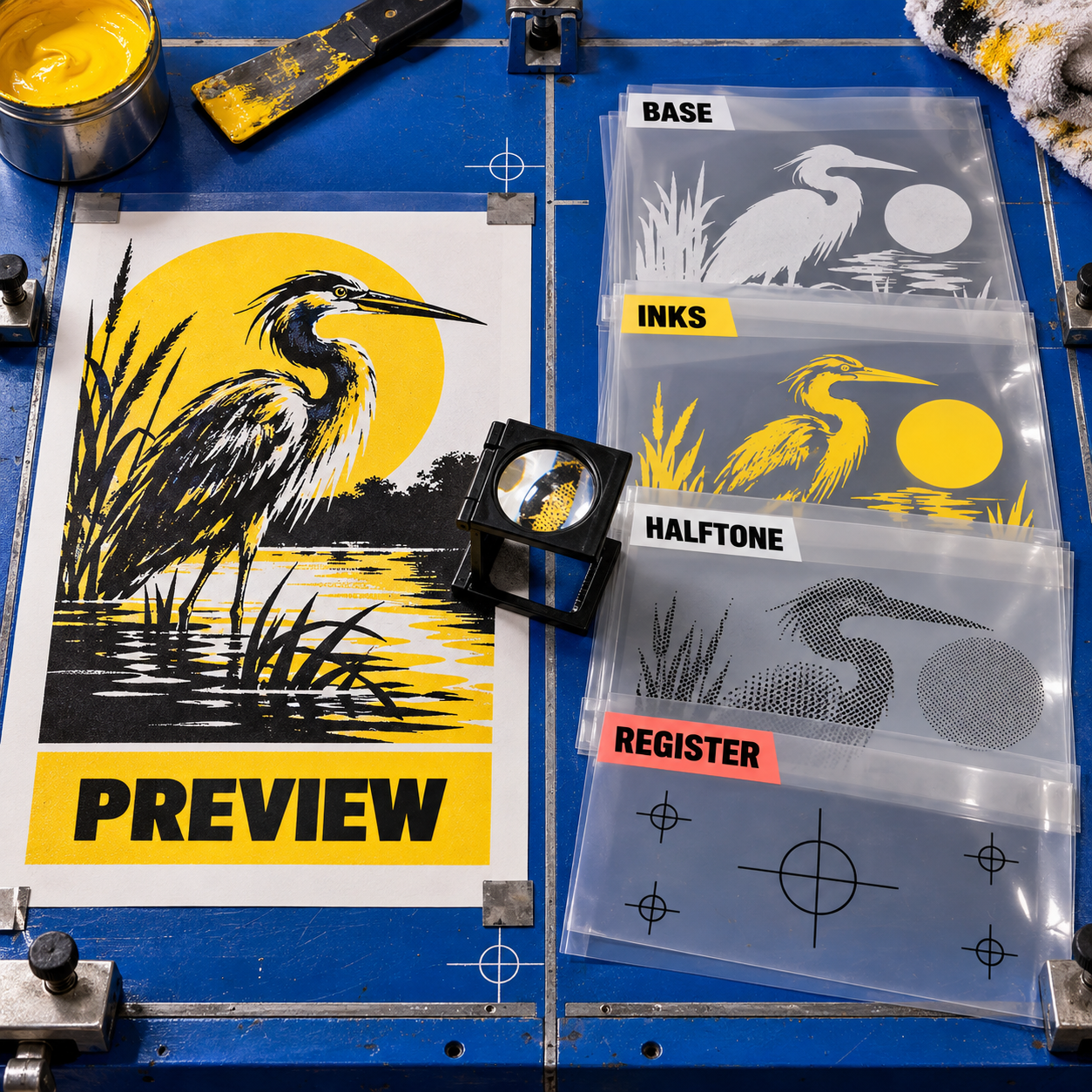
Choose one revealing source
Use artwork that resembles paid work and exposes the likely failure points: flat brand colors, a gradient or tonal passage, fine edge detail, pale highlights, and transparency if the normal queue includes it. Keep a clean master untouched.
Lock the production brief
Set final dimensions, garment color, permitted inks, target color count, base requirement, and the intended RIP or direct-to-screen route. Give every product the same brief and source.
Export the uncorrected first pass
Save the composite proof and every available plate. Record which controls were automatic, which were exposed, and whether the tool transformed the source dimensions or format.
Run the plate inspection
Solo every color. Check missing detail, isolated noise, edge contamination, tonal ramps, ink naming, print order, underbase coverage, highlight white, halftone structure, and registration marks. Mark each field pass, repairable, or fail.
Allow one controlled correction round
Make the smallest correction the tool supports. Do not change several inputs at once. Record whether the repair stays local or forces a new full separation, then reopen the saved output to confirm the edit persists.
Price the accepted output
Add plan or credit cost to correction and handoff labor. Count only jobs whose files reach the established output path. The tool with the lowest accepted-job cost wins, even if another generated more attractive first previews.
For a new shop, run that protocol first in Texloom's free allowance, InkSplit's Starter pool, and Separo's trial. Add Textile Designer AI only if the wider textile workflow is relevant. Add Separation Studio NXT when local software is a genuine option. The comparison should reveal which product reduces the shop's own bottleneck instead of producing a universal winner by taste.
Frequently Asked Questions
Can AI do color separations for screen printing?
Yes. Separo explicitly documents machine learning, Textile Designer AI states AI processing, and Texloom labels its Pro AI engine while documenting K-means clustering. InkSplit automates the job without substantiating a current AI model. In every case, a production artist still needs to approve plates, underbase, halftones, registration, and output.
What is the best color separation software for screen printing?
InkSplit is the best overall online choice here because it combines spot, simulated-process, and CMYK separation with dark-garment base controls, channel editing, and an optional built-in RIP. Separation Studio NXT is the stronger conventional local benchmark when AI is not required.
How do I separate colors for screen printing?
Start with artwork at final size, choose the print method and intended inks, reduce the image into one channel per ink, build the underbase for dark garments, correct each plate, set halftones, add registration marks, and export through the shop's RIP or direct-to-screen workflow. Inspect each plate separately before output.
Is there an online tool for screen printing color separation?
Yes. InkSplit, Separo, Texloom Studio, and Textile Designer AI all run in a browser. InkSplit has the most complete documented apparel workflow; Separo is the clearest machine-learning option; Texloom is the lowest-cost serious trial.
Is there any free screen printing rip software available?
None of the ranked products documents a complete unlimited RIP workflow for free. InkSplit includes separation credits on Starter but reserves its built-in RIP for Studio and Print Pro. Separo says its cloud RIP is coming soon. Free trials can evaluate separation, but confirm the film-output path before committing production.
What is the best color separation software available?
For a mixed apparel shop, InkSplit is the best overall choice. Separo is better when explicit machine learning and an existing Photoshop plus RIP stack matter. Texloom is better for inexpensive flat-color textile work. Textile Designer AI is better when separation belongs inside a broader pattern workflow.
What is the best design software for screen printing?
Use a purpose-built separator for the automatic first pass and keep an editor for exceptions. InkSplit covers the most steps in one tool, while Photoshop remains the manual channel-correction benchmark and Separation Studio NXT is a mature non-AI automation benchmark.
How to separate colors in Photoshop for screen printing?
Create or convert selections into spot channels, name each channel for its intended ink, paint black, gray, or white into the channel to control its mask and density, arrange the print order, and save in PSD or TIFF so the spot channels remain available. Then send the file through the correct RIP or press-output path.
How to separate colors from an image?
Reduce the image into intentional ink groups, create one grayscale plate per ink, and then correct edges, overlaps, tonal transitions, and white plates. For a screen print, the job is complete only after the channels match the press method and can be registered and output.
Color separation for screen printing online free
Texloom Studio offers 100 starter credits with Separation Studio listed at one credit per run. InkSplit offers 30 starting credits, and Separo offers a 30-day trial. Use the same source in each and compare the exported plates, not just the on-screen proof.
Screen printing color separation software free download
Separation Studio NXT offers a downloadable full-featured trial for Mac and Windows. The four ranked products are browser-based, so they do not offer conventional software downloads. Avoid unofficial copies because version and output compatibility are part of the production risk.
- Last Updated
- Sep 12, 2026
- Category
- Design
Prefer this site in Google


Mark omidsaffari.com as preferred and Google lifts it in Top Stories, AI Overviews and AI Mode for you.
Pattrn-AI Review for Stained Glass Patterns
Check whether Pattrn-AI turns photos and sketches into editable, printable stained glass patterns, and where manual pattern work remains.Sep 12, 2026Design
Glimeo Pricing (2026): Redos, Extras, and Expiry
Decode Glimeo plans, $10 extra videos, paid redos, expiry rules, and annual billing so your demo-video budget matches the work you approve.Sep 12, 2026Design
Best AI Tools for Landscape Design Proposals
Compare AI landscape design tools for client proposals by photo fidelity, revisions, exports, commercial use, and cost per project.Sep 11, 2026Design
ngram vs Guidde for Product Demo Videos
Compare ngram and Guidde for product demos: source material, capture, editing, branding, exports, and the work needed for each update.Sep 10, 2026Design
Demosmith Pricing
Decode Demosmith plans by AI minutes, demo limits, video versions, exports, and the point where a weekly demo workflow needs an upgrade.Sep 10, 2026Design
CullAi vs Narrative Select
CullAi is now a legacy app. Compare its photo-selection workflow with Narrative Select and see what an existing user gains by moving.Sep 10, 2026Design
Best AI Tools for Jewelry on Model Photos
Compare NeuroViz, Photta, FormaNova, and SellerPic for jewelry detail checks, live credit costs, export limits, and catalog-ready on-model photos.Sep 9, 2026Design