Best Software for Punch Needle Patterns
Compare punch needle pattern software for clean outlines, photo conversion, color control, mirrored transfers and full-size printing.

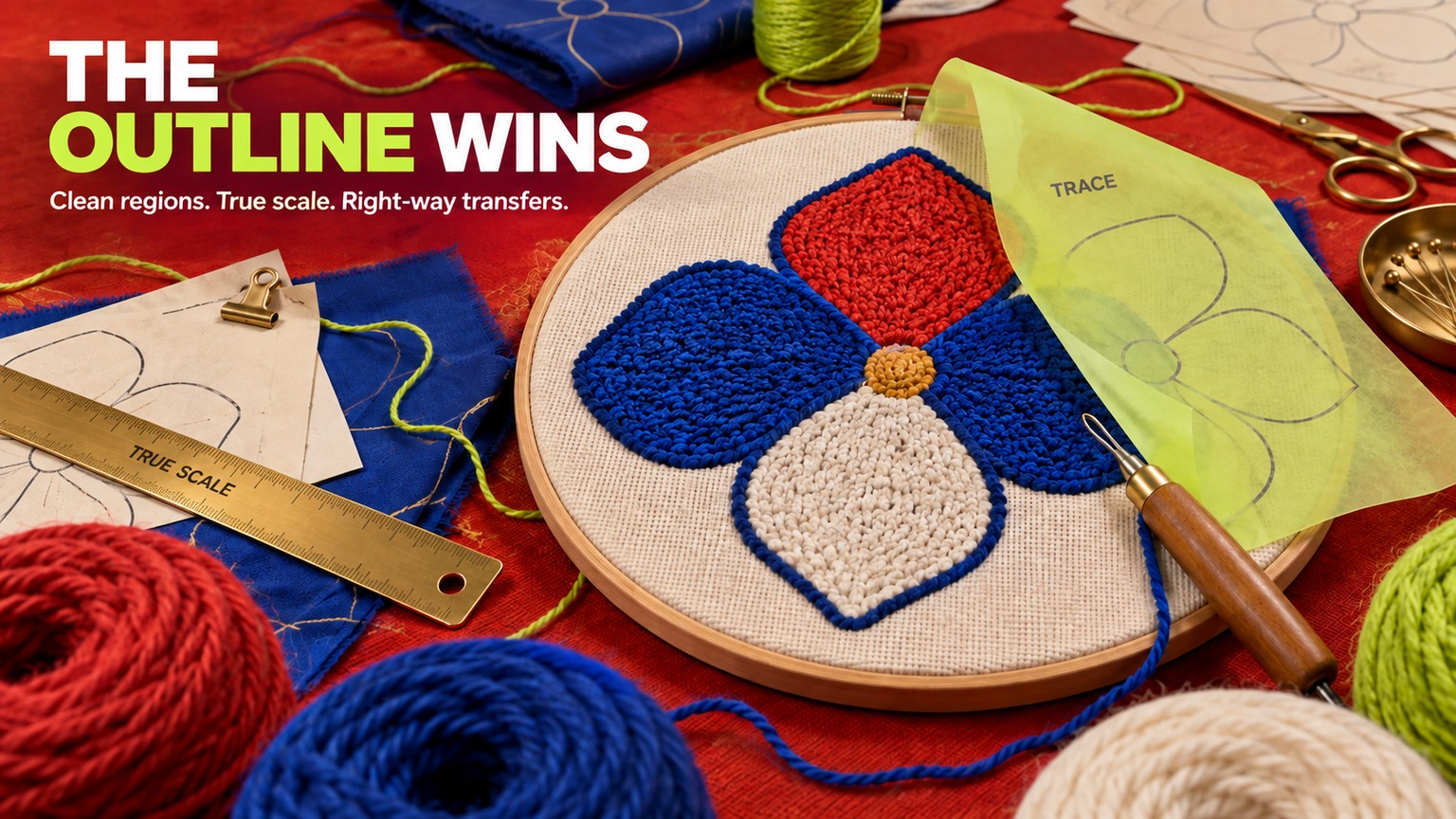
The best software for punch needle patterns is Affinity: it gives you editable vector regions, physical dimensions, mirroring and PDF export, and it is free for individuals as verified on 17 September 2026. ArtPatt is faster for photo conversion at $6.99 a month, but its grid is a chart, not the clean boundary map most hand-punched work needs.
Prices and product documentation were checked on 17 September 2026. The deciding distinction is simple: a good hand-punch pattern shows where one color region ends and the next begins. A grid converter can be useful for counting loops, but it often preserves far more cell-level detail than you want to trace onto cloth.
Best Software for Punch Needle Patterns at a Glance
Affinity is the best overall choice because it covers the whole design side of the job without a subscription: convert or draw the motif, reduce it to broad editable shapes, set the document in physical units, mirror a transfer copy, and export a PDF. It does not natively give you the easiest multi-sheet poster-print workflow, but free Adobe Acrobat Reader closes that last gap.
Choose ArtPatt when speed matters more than a smooth outline and you genuinely want a cell chart. Choose Illustrator when you already pay for Adobe or need tracing and print tiling in one app. Inkscape is the strongest fully open-source route, while Procreate is the most natural choice for an iPad-first illustrator who would rather draw the regions than clean up an automatic trace.
How These Tools Were Picked
The comparison uses one fixed production brief: a 6-inch-wide, four-color flower with one asymmetrical leaf and the word GROW, fitted inside a 7-inch hoop. The flower tests whether a tool can turn shading into a few broad, closed regions. The lone asymmetrical leaf exposes an accidental mirror. The word makes the working-side orientation impossible to ignore.
This is a capability and workflow comparison, not a claim that five finished samples were punched during this review. Scores come from current vendor documentation, live pricing, export formats, drawing controls, physical-size controls, mirroring, and the usefulness of the output at the cloth. That standard favors a clean boundary map over a colorful screen preview.
The before state is a shaded reference with soft petal edges, tiny tonal changes, and right-reading text. A literal cell conversion keeps many of those changes, producing isolated color specks that are tedious to trace and awkward to punch. The useful after state has four closed color regions, a deliberately mirrored transfer copy, a known 6-inch width, and a PDF that prints at authored size.
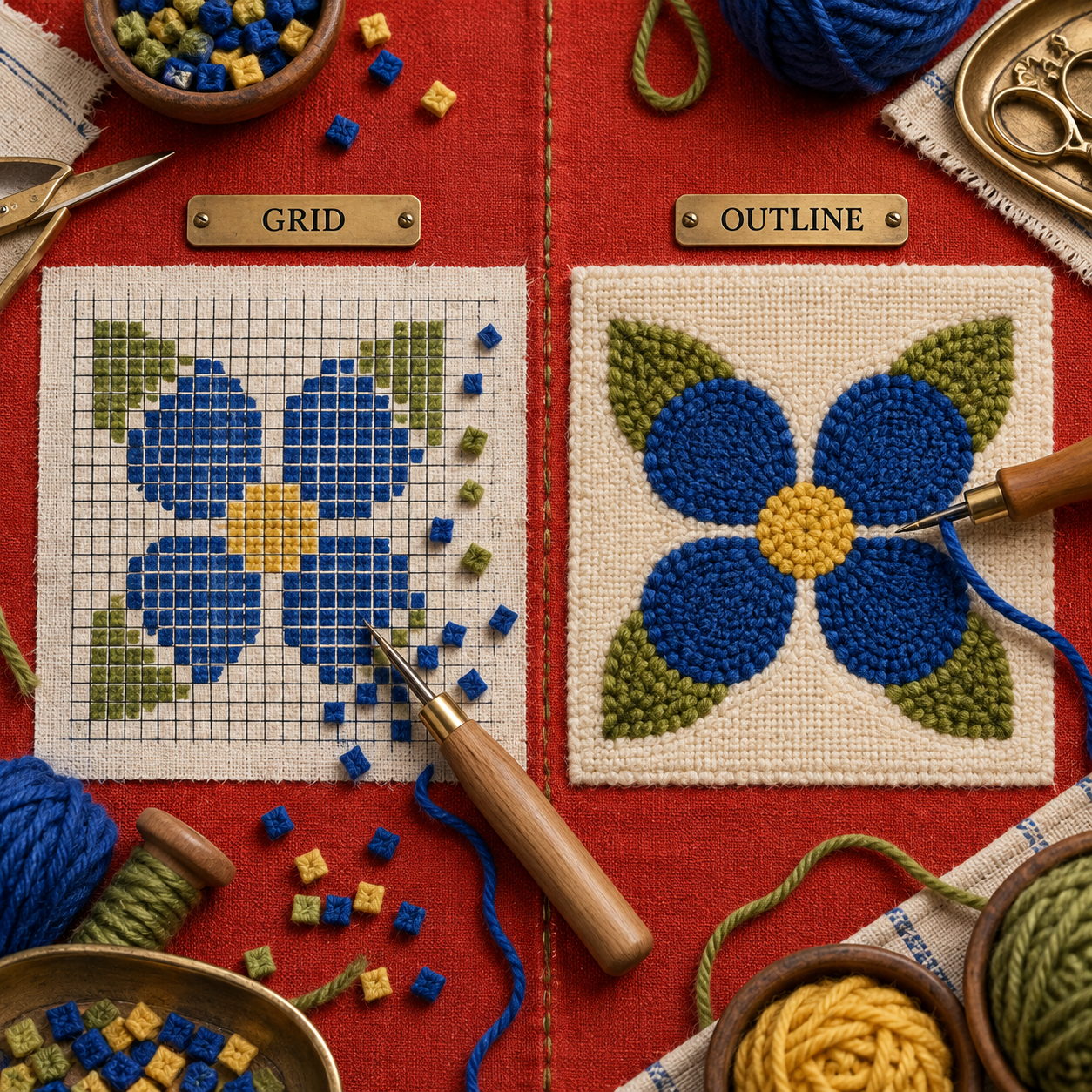
That difference is the craft bar. Vector paths are editable lines and shapes that can enlarge without pixelation; raster art is a fixed grid of pixels. Either can produce a usable transfer, but vectors make it much easier to remove a wobbly node, widen a narrow channel, recolor one petal, or resize the entire motif without redrawing it.
The ranking weighs five things:
- Traceable regions: Can the result be simplified into large, closed shapes rather than confetti?
- Orientation: Can you create a clearly mirrored working copy for designs with text or directional forms?
- Physical scale: Can the file carry a real width and print without accidental fit-to-page scaling?
- Color control: Can colors be edited after conversion instead of accepted as a fixed palette?
- Estimate honesty: If a tool predicts loops or yarn, does it expose the gauge assumptions behind the number?
What Punch Needle Design Software Must Do Before You Print
The software does not need to imitate the texture of finished loops. It needs to make decisions that remain legible through fabric, yarn, and hand movement. On the flower brief, that means collapsing every photographic highlight into one of four intended colors, closing small gaps between regions, and deleting details narrower than the punch path can hold.
Orientation comes next. Oxford-style punch needle is worked from the back, so a word traced on the working side appears reversed on the loop side unless the transfer is mirrored first. The safe file contains two named versions: a right-reading master for approval and a mirrored transfer for tracing. Never rely on remembering which one is on screen.
Scale is a document property, not a visual guess. Set the motif to 6 inches in the design app, export without changing its dimensions, then print at 100% and measure a known reference before marking the fabric. This is the same geometry problem that matters in bobbin lace pattern software: a beautiful line drawing at the wrong physical size is still the wrong pattern.
A Custom Punch Needle Pattern Recipe
Start with the final display side, even though you will work from the reverse. Draw or trace only the region boundaries, assign one editable fill color to each region, and keep the outline on its own layer. Duplicate the completed art, label the copy TRANSFER, mirror that copy horizontally, and export it as a PDF at its authored physical size.
Before committing cloth, print a small proof that includes the motif width. Measure it with a physical ruler. If 6 inches in the file does not measure 6 inches on paper, fix the print setting rather than changing the artwork.
How to Turn a Photo to Punch Needle Pattern Without Losing the Outline
A photo converter answers, "Which color is this sample?" A hand-punch transfer answers, "Where does this region begin and end?" Those are different jobs. Start by cropping tightly around the subject, removing the background, and limiting the palette before automatic conversion. A four-color source has a better chance of becoming four useful regions than a photograph with dozens of highlights and shadows.
If the converter returns a grid, use it as a color-planning reference rather than tracing every cell. Rebuild the major boundaries with a pen or vector tool, merge isolated specks into their nearest region, and enlarge narrow channels until they can survive the chosen yarn and needle. Preserve one unmistakable directional feature, such as the flower's asymmetrical leaf, so the mirrored transfer can be checked at a glance.
For a portrait, pet, or landscape, accept that simplification changes the image. A readable silhouette with five deliberate value groups will usually punch better than a nominally faithful chart full of single-cell changes. The goal is not maximum photographic information. It is the minimum information needed to recognize the subject after the loop texture softens every edge.
1. Affinity: Best Overall
Affinity is the strongest all-round pattern workspace because its free individual edition combines vector drawing, pixel editing, page layout, and print-ready export in one desktop app. Its current feature page lists Image Trace, node and curve editing, snapping, alignment, shapes, and PDF and SVG export, which covers every design operation in the fixed flower brief. The real limit is output logistics: for an oversized multi-sheet pattern, Acrobat Reader is the simpler companion for poster tiling. If you want clean shapes you can revise next month, Affinity is the most complete choice here.
Best for: Editable outline patterns on macOS or Windows
Standout: Image Trace plus direct node cleanup and physical document sizing
Pricing: Free for individuals; a free Canva account is required
Free trial: Not needed for the individual edition
- Image Trace can turn a flat reference into editable paths instead of a locked cell chart.
- Node editing makes narrow gaps, stray islands, and uneven curves directly repairable.
- PDF and SVG export preserve a clean master for future sizes and colorways.
- Pixel, vector, and layout tools sit in one app without an individual subscription.
- A free Canva account is required to download and use it.
- The current iPad version is still listed as coming soon.
- Acrobat Reader is the easier extra step for tiling a large PDF across home-printer pages.
Best Software for Punch Needle Patterns Free: Affinity vs Inkscape
Both desktop options cost $0, but Affinity is the easier recommendation for most pattern makers because tracing, raster cleanup, vector editing, and page layout live in one polished workspace. Inkscape remains the better choice if open-source licensing or Linux support is non-negotiable. The output quality can be equally strong; the difference is how much interface friction you accept while cleaning the paths.
Build the flower transfer in Affinity
Set the final size
Create the document in inches, draw a 6-inch reference circle, and keep it on a locked GUIDE layer. The art should fit inside that boundary, not be resized after export.
Trace and simplify
Place the source, run Image Trace if the reference is suitable, then expand the result into editable curves. Reduce the flower to four closed regions and remove isolated shapes that would become single flecks of yarn.
Repair the craft edges
Use node editing to smooth petal boundaries, widen tight channels, and close gaps. Keep a separate OUTLINE layer so the transfer line remains visible when fills change.
Make the transfer copy
Duplicate the finished group, label the copy TRANSFER, and flip it horizontally. Confirm that GROW reads backward on this copy and correctly on the untouched master.
Export and prove scale
Export the transfer as PDF with the document dimensions intact. Print at 100%, measure the 6-inch reference, then trace only after the measurement matches.
2. ArtPatt: Best for a Fast Photo Grid
ArtPatt is the fastest route from an uploaded photo to a punch-specific color chart, and its generator guidance says processing stays in the browser without uploading the source image. It recommends a 30 to 50 cell width, treats each cell as one loop, and provides color and black-and-white symbol versions. That is useful when the intended method follows a countable grid, but it is less useful when you need a few sweeping boundaries to trace on monk's cloth. Its scale guidance also conflicts across its own current pages, so a stitched gauge sample is mandatory before trusting the finished dimensions.
Best for: Converting a simple photo into a counted color chart quickly
Standout: Punch-specific cells, palette swapping, symbols, and yarn estimation
Pricing: Free; one printable PDF is $2.99; Pro is $6.99/month or $59.99/year
Free trial: Free plan allows one pattern each week
- The punch-specific mode removes the setup work of adapting a cross-stitch converter.
- Browser-local processing keeps the source image on the device.
- Color swapping and symbol output make a limited palette easier to plan.
- The loop-count model makes its yarn assumptions inspectable.
- The output is a cell chart, not an automatically clean vector boundary map.
- Published scale examples conflict with the stated default gauge.
- Pro is needed for unlimited patterns, HD PNG or PDF, and the fuller editor.
ArtPatt: The Fastest Punch Needle Pattern Maker
Use ArtPatt for a graphic source with large, flat colors. A logo-like flower with four regions fits the converter far better than a shaded photograph, because every tonal change can become a separate cluster of cells. Keep the width low enough to suppress speckling, swap near-duplicate colors into one yarn choice, and treat the chart as a planning layer if the actual transfer needs smooth curves.
The current ArtPatt pricing page lists a $0 plan with one pattern each week and no credit card, plus a $2.99 purchase for one printable PDF. Pro is $6.99 a month or $59.99 a year and adds unlimited patterns, HD PNG and PDF downloads, a library of the last 50 patterns, the pixel editor plus backstitch, and 5 AI images a month. Twelve monthly payments total $83.88, so the annual option is $23.89 less; either paid route is most valuable when you need repeated grid conversions rather than an editable outline.
The scale conflict matters more than the preview
ArtPatt's guide states a default gauge of 10 stitches per 10 cm. At that gauge, a 40-cell design would finish at 40 cm. Its landing page also says 30 cells are about 20 cm, 50 cells about 33 cm, and 80 cells about 53 cm, examples that imply roughly 15 cells per 10 cm and put 40 cells near 26.7 cm.
Those are materially different transfers. Do not resolve the discrepancy by choosing the number that fits the hoop. Punch a small sample using the actual needle, yarn, fabric, loop height, and hand spacing; measure the completed sample; then replace the default gauge with that result.
Verdict: ArtPatt earns second place because it is the only candidate built specifically around punch-needle conversion, color planning, and loop estimates. It does not take first because the grid output and unresolved size guidance create work at the two moments that matter most: tracing a clean curve and fitting the hoop.
3. Adobe Illustrator: Best Paid All-in-One
Adobe Illustrator is the most complete paid choice when tracing and oversized printing must stay in one application. Image Trace can convert a raster reference into editable vector paths using Auto Color, Low Color, Black and White, or Outline modes, then ordinary path tools handle the cleanup. Unlike the other design apps here, Illustrator can tile art larger than the printer paper directly from its Print dialog using Full Pages or Imageable Areas. The drawback is economic, not functional: an occasional pattern does not justify an annual commitment when Affinity can author the same clean master for free.
Best for: Adobe subscribers who want tracing and poster tiling in one app
Standout: Editable Image Trace output plus native tiled printing
Pricing: US$22.99/month on an annual plan billed monthly
Free trial: 7 days
- Low Color tracing gives a direct starting point for a limited-yarn palette.
- Vector paths remain editable at any hoop size.
- Native print tiling removes the separate Acrobat step.
- PDF and standard Adobe workflows are familiar to print professionals.
- Twelve monthly payments total US$275.88 across the annual commitment.
- Automatic traces still need manual simplification for punchable regions.
- The toolset is excessive if you make only an occasional pattern.
For the flower brief, begin with Low Color rather than a high-fidelity preset, expand the trace, and merge tiny islands before adjusting curves. Keep the 6-inch guide visible while editing and preserve the unmirrored master. Make the transfer as a duplicate, use horizontal reflection, then print tiled at 100% if the motif exceeds the available sheet.
Adobe's current plan page includes 100 GB of cloud storage with the individual Illustrator plan. That storage does not improve a punch pattern, so it should not influence the choice. The decision flips toward Illustrator only when native tiling, an existing Creative Cloud workflow, or repeated professional vector work is already worth the subscription.
4. Inkscape: Best Open-Source Option
Inkscape is the best option for someone who wants a free, open-source vector master on Windows, macOS, or Linux. Trace Bitmap converts a photo into paths, Document Properties can hold a custom physical page size, and manual Pen or Pencil tracing is available when automation makes a mess. Its own manual warns that color scans create one object per color and can become difficult for beginners to edit, which is exactly the wall a shaded flower creates. If you can tolerate a less polished interface and a separate print step, the final outline can be as production-ready as one made in paid software.
Best for: Open-source vector work and Linux-based pattern design
Standout: Free path editing with Trace Bitmap and physical page controls
Pricing: Free and open source
Free trial: Not needed
- Runs on GNU/Linux as well as Windows and macOS.
- Produces editable paths that scale cleanly.
- Manual tracing tools are often faster than repairing a noisy automatic result.
- Custom document units support a real hoop-size master.
- Multi-color Trace Bitmap results can create a crowded stack of objects.
- The interface has a steeper learning curve than the top pick.
- Easy multi-sheet printing generally moves to Acrobat Reader.
The efficient Inkscape workflow is deliberately low-tech. Dim and lock the source layer, trace only the major petal and leaf boundaries with the Bezier tool, close every path, and assign four fills. This avoids generating dozens of near-duplicate shapes that then need to be deleted.
The choice between Affinity and Inkscape is not about image quality. Choose Inkscape for open-source control, Linux, or a workflow you can keep indefinitely without an account. Choose Affinity when setup speed and an integrated raster-to-layout workspace matter more.
5. Procreate: Best for Drawing on iPad
Procreate is the best fit for an illustrator who wants to draw the pattern by hand on an iPad instead of repairing an automatic trace. QuickShape can snap strokes into lines, arcs, ellipses, triangles, and quadrilaterals, while Transform provides horizontal and vertical flip controls. A canvas can be defined in inches, centimeters, or millimeters with a chosen DPI, and the finished art can be exported as PDF. The limiting factor is that SVG is not among the listed export formats, so the pattern remains raster-based unless it is vectorized elsewhere.
Best for: Hand-drawn motifs and iPad-first illustrators
Standout: Natural drawing, QuickShape, layers, and horizontal flipping
Pricing: US$12.99 one-time in the US App Store
Free trial: None listed
- The one-time price is lower than one month of Illustrator.
- Layered drawing makes the master, fills, outline, and transfer copy easy to separate.
- QuickShape helps clean geometric boundaries without losing a hand-drawn character.
- Physical canvas units and PDF export support a measured transfer.
- It requires an iPad.
- Raster artwork is less forgiving when enlarged beyond its planned size.
- No SVG export is listed, so editable vector handoff needs another app.
Set the flower canvas to its intended physical width and use 300 DPI, which Procreate's handbook calls the standard for printing. Keep the source, color regions, and transfer line on separate layers. Duplicate the finished group and use Flip Horizontal on the copy, then export PDF and verify the print with a ruler.
The US App Store listed Procreate 5.4.13 at $12.99 on the verification date, with that version released on 11 September 2026. Version recency is useful context, but the buying rule is stable: pick Procreate for direct drawing and tactile control, not for editable vector delivery.
Print Every Pattern at Hoop Scale
Adobe Acrobat Reader is the free print companion that makes an oversized PDF practical on an ordinary home printer. Its Poster option splits one large PDF page over multiple sheets and provides Tile Scale, overlap, cut marks, labels, and an option to tile only large pages. That means the design app can author one correctly sized motif while Acrobat handles the paper seams. It is not a pattern editor, so keep it outside the ranking and use it only after the master is finished.
The safe print sequence is short:
- Export one PDF page at the motif's final physical dimensions.
- Open it in Reader and select Poster in the print settings.
- Leave Tile Scale at 100% so the authored dimensions remain unchanged.
- Add enough overlap to align the sheets and turn on cut marks if they help.
- Print, assemble the pages, and measure the 6-inch reference before tracing.
Adobe's poster-printing guide shows those controls in the current desktop workflow. Printer drivers can still introduce scaling, so the ruler check remains the final authority.
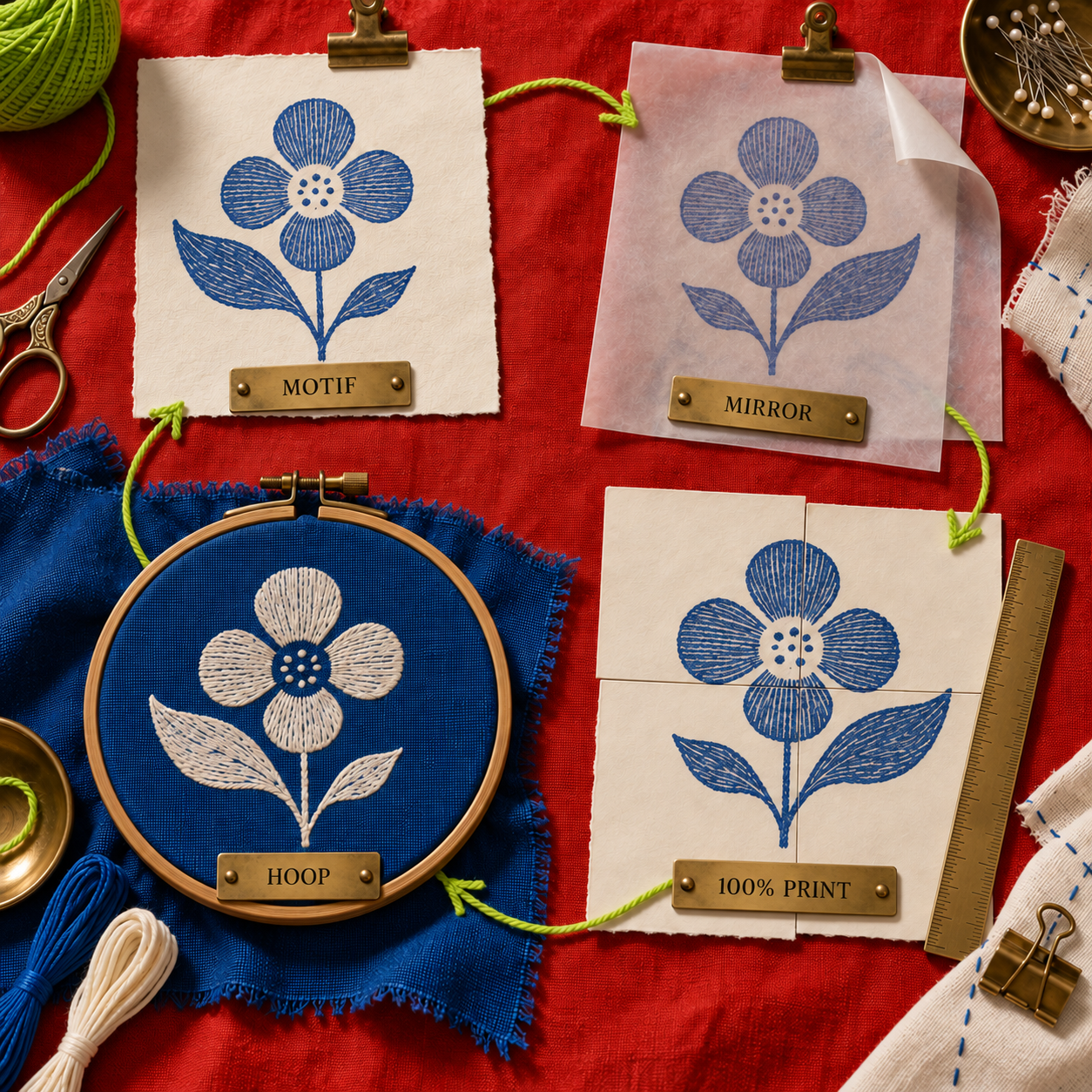
The fabric calculation belongs in the same workflow. Oxford says its monk's cloth is about 13 double threads per inch and recommends adding 5 inches of cloth on each side of the pattern for hemming. For a 7-inch hoop or frame opening, that extra working margin affects the fabric cut, not the art dimensions. Design to the visible motif size first, then prepare enough foundation fabric to stretch and finish it safely.
Who Should Pick What
Pick Affinity if the final artifact should be a reusable outline master. It is the default for a maker who wants to change petal curves, swap a colorway, create a second hoop size, or send a clean SVG to someone else.
Pick ArtPatt if the final artifact should be a counted color chart and the source is already simple. Its punch-specific loop model is valuable, but only after you replace the generic gauge with a sample from your actual setup.
Pick Adobe Illustrator if you already subscribe or if native poster tiling is worth keeping inside one application. Paying US$275.88 over the annual commitment solely for an occasional transfer is difficult to justify.
Pick Inkscape if open-source software, Linux support, or account-free vector work is the priority. Pick Procreate if drawing by hand on iPad is the creative advantage and the pattern will not need an SVG handoff.
The decision rule that flips the ranking is the desired output. If you need boundaries, choose a vector editor and rank Affinity first. If you need counted cells, choose ArtPatt. If you already live in Adobe and want the printer workflow built in, Illustrator can move from third to first for your situation.
The Ones to Avoid for Outline Transfers
Stitch Fiddle
Stitch Fiddle is a capable chart maker for crochet, cross stitch, knitting, diamond painting, fuse beads, pixel macrame, latch hook, quilt, Pixelhobby, and pixel art or other grid work. Punch needle is not listed among its supported crafts. That does not make it poor software; it makes it the wrong starting point when the deliverable is a few smooth shapes on cloth. Use it only when your punch method intentionally follows a counted square grid.
The risk is category confusion. A detailed chart can look more authoritative than a simple outline, yet require far more transfer work and encourage tiny color changes that disappear in loop texture. This is also why the ranking should not be recycled from rug-tufting pattern software: a tufting gun, a hand punch, and a counted chart impose different path, scale, and detail constraints.
Pic2Pat
Pic2Pat converts an image into a cross-stitch chart, with thread colors and symbols built around that craft. It is useful for the cross-stitch question it answers, but its cells are not an editable boundary map and its thread assumptions are not a punch-needle yarn estimate. Choose it for cross stitch, not as a shortcut to a hoop-scale traced outline.
Also avoid any workflow that cannot state the output's physical width. A screenshot, JPEG, or chart can look correct on screen while printing at an arbitrary size. If a tool cannot carry real dimensions, place its output into Affinity, Illustrator, Inkscape, or Procreate and author the size there before printing.
Frequently Asked Questions
What program can I use to turn pictures into cross stitch patterns?
Pic2Pat is made for turning a picture into a cross-stitch chart. Stitch Fiddle also supports cross stitch and several other counted crafts. For punch needle, ArtPatt provides a punch-specific grid, while Affinity is better when you want a smooth editable outline rather than counted squares.
Is punch needle more difficult than embroidery?
The basic punching motion can be easier to learn than a large vocabulary of embroidery stitches, but the setup is less forgiving. Fabric tension, the match between needle and yarn, yarn feed, and consistent punch depth all affect whether the loops stay in place. A simple pattern does not remove those mechanical variables.
What is punch needle embroidery called?
The rug-yarn form is commonly described as punch needle rug hooking, which is the term used by the Oxford Rug Hooking School. Fine-thread work is often described as punch needle embroidery. The tools and foundation fabrics are not interchangeable merely because both use a hollow punch needle.
What all do you need for punch needle art?
You need a punch needle matched to the yarn or floss, compatible foundation fabric, a hoop or gripper frame that holds the fabric taut, a pattern, and a suitable marking tool. Scissors and enough extra fabric for stretching and finishing are also practical necessities. For directional art, add a right-reading master and a mirrored transfer to the file set.
Is punch needle an expensive hobby?
It can start inexpensively with a small hoop, a compatible needle, foundation fabric, and yarn already on hand. A durable rug needle, gripper-strip frame, specialty monk's cloth, and large quantities of rug yarn raise the entry cost. The software need not add to it because Affinity and Inkscape both have free paths.
What is the best fabric to use for punch needle work?
The best fabric is the one whose weave matches the needle and fiber. For Oxford-style rug punching, Oxford recommends monk's cloth first, with rug warp also acceptable. Fine embroidery-style punch needles generally use weaver's cloth instead.
What can I use instead of monks cloth for punch needle?
Primitive linen can work for an experienced rug puncher, and rug warp is another compatible alternative for many rug-needle setups. Weaver's cloth belongs to finer embroidery-style needles. Oxford specifically does not recommend burlap for its rug-punch workflow.
Can you use regular fabric with a punch needle?
Only if the fabric weave opens around the needle and closes around the yarn without tearing. Ordinary tightly woven fabric often resists a rug punch needle, while a loose or unstable weave may fail to hold the loops. Match the foundation to the exact needle system rather than relying on the fabric's general name.
What is the best fabric to use as backing for a punch needle?
For Oxford-style rug punch needle, correctly woven monk's cloth is the most predictable backing. Oxford's version is 100% cotton at about 13 double threads per inch, with guidelines every 2 inches. A different punch size or fine-thread tool may require a different foundation.
Best software for punch needle patterns for beginners?
Affinity is the better beginner choice when the goal is a clean outline that can be resized and recolored. ArtPatt is faster when the goal is a first counted chart from a simple photo. A beginner should choose based on that output difference, not the number of craft-specific labels in the interface.
How to transfer punch needle pattern?
Finish a right-reading master, duplicate it, and mirror the transfer copy when you will punch from the back. Print at 100%, confirm a known measurement with a ruler, stretch the fabric taut, and trace only the major boundaries with a marker suited to the foundation. The Oxford FAQ confirms that lettering must be backward on the working side so it reads correctly on the finished side.
How to enlarge punch needle pattern?
Resize the master to the final physical dimensions in a vector editor or a sufficiently high-resolution raster canvas. Export one full-size PDF, then use Acrobat Reader's Poster mode at 100% Tile Scale to divide it across sheets. Do not enlarge each printed page independently, because small scaling differences break alignment.
For a broader framework for judging software before you buy it, get the AI Business Workflow Audit Checklist and join the newsletter.
- Last Updated
- Sep 17, 2026
- Category
- Design
Prefer this site in Google


Mark omidsaffari.com as preferred and Google lifts it in Top Stories, AI Overviews and AI Mode for you.
Glass Eye 2000 Review
Review Glass Eye 2000 for stained glass drawings, piece labels and full-size patterns, with edition limits, trial access and compatibility checks.Sep 17, 2026Design
Stitch Fiddle vs Chart Minder
Compare Stitch Fiddle and Chart Minder for photo charts, gauge, editing, privacy and print exports before choosing a browser pattern editor.Sep 17, 2026Design
Lace8 Pricing (2026): Licence, VAT and Add-Ons
Understand the Lace8 licence, VAT and optional motif packs so an add-on listing does not become your software budget.Sep 17, 2026Design
Treadl vs AdaCAD
Compare Treadl and AdaCAD for shared weaving projects, parametric drafts and WIF handoffs, with a clear choice for each workflow.Sep 17, 2026Design
VArtGlass Stained Glass Software Pricing
Decode VArtGlass trial access, monthly and annual plans, free patterns and the costs to check before preparing stained glass files.Sep 17, 2026Design
Best Software for Bobbin Lace Patterns
Compare bobbin lace design tools by repeat editing, pin spacing, printable prickings, learning effort and the cost of making usable patterns.Sep 17, 2026Design
How to Add Bridges to a Stencil in Inkscape
Keep the centers of letters and enclosed shapes attached. Add stencil bridges in Inkscape, inspect the paths and check the design before cutting.Sep 16, 2026Design