Best Software for Paper Quilling Patterns
Compare software for paper quilling patterns by editable outlines, reusable shapes, size controls, and printable templates you can build from.

Inkscape is the best software for paper quilling patterns for most makers: it costs $0, keeps the working design as editable SVG paths, and exports a clean PDF for printing. Affinity is the easier polished alternative, while Illustrator earns its $22.99 monthly price only when a reusable commercial pattern library matters.
Best Software for Paper Quilling Patterns at a Glance
The right software does not merely draw a flower that looks quilled. It gives you paths you can move, repeated shapes you can update, dimensions you can trust, and a file another maker can print without guessing the scale.
Prices below were verified on September 18, 2026. “Free trial” refers to the relevant software or subscription, not a cutter bundle.
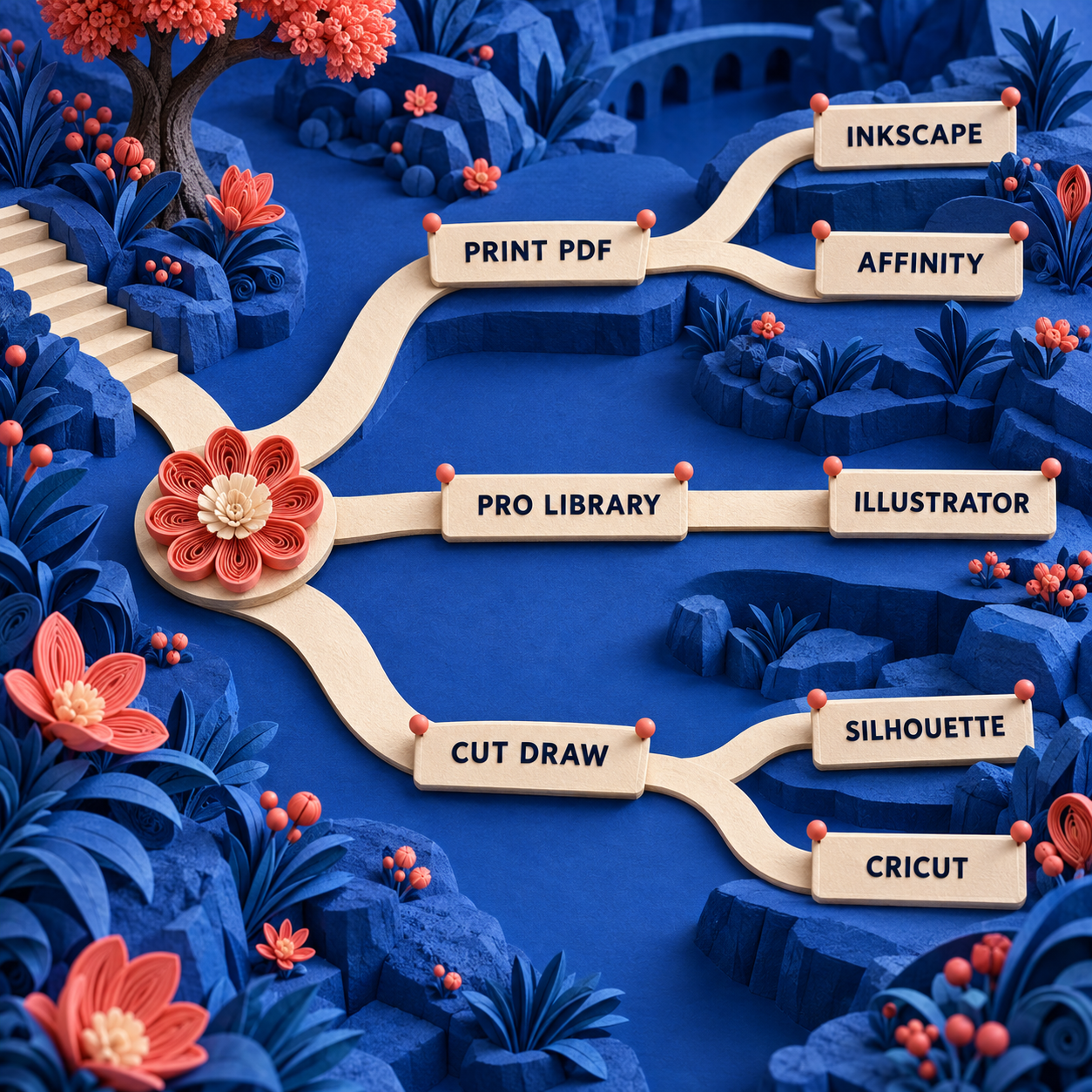
The short verdict is simple. Start in Inkscape unless a more polished interface matters enough to choose Affinity, a paid production library justifies Illustrator, or the file is already at the machine stage. Silhouette Studio and Cricut Design Space are strongest near their own cutters, not as neutral master-file environments.
How These Were Picked
This is a documentation-based comparison, not a claim that every application was installed and every flower was physically quilled during this run. Current prices, supported formats, repeat features, sizing behavior, and export limits were checked against vendor documentation. The ranking then applies those facts to the same small pattern brief.
That brief is a 3-inch flower on a US Letter page. It uses one editable teardrop master repeated 6 times, 3 concentric coil guides, and a 0.5-point guide stroke. The deliverables are an editable source, an SVG handoff, and a PDF intended to print at 100 percent.
Those details expose the difference between a drawing program that can make attractive craft art and software that can make a repeatable template. The strongest application must handle four jobs:
- Editable geometry: a petal remains a path with usable nodes, not a fuzzy edge baked into pixels.
- Reusable shapes: changing the master petal should update or efficiently replace its repeated copies.
- Physical size: the page and flower use real-world dimensions that survive export.
- Clean handoff: the editable master stays editable, while the print file opens without requiring the authoring app.
A vector stores shapes as paths, so the same curve can scale without inheriting a fixed pixel grid. A raster stores colored pixels. Raster art can be a useful appearance reference, but it is a poor master when a maker needs a precise strip route or a cutter needs separate lines.
Quilling Paper Filigree Patterns Need Construction Lines
Quilling paper filigree patterns are instructions for placing material. A finished photograph communicates color, density, and mood, but it does not tell the maker where one strip ends, which coil repeats, or how large the form should be. The useful file exposes those decisions.
That is why this ranking rewards clean paths more than brushes, filters, or image effects. Even a beautiful result becomes frustrating if the only editable object is a single flattened picture.
Paper Quilling Templates Need Real-World Size Controls
Paper quilling templates cross from screen to physical material. A curve that looks correct at an arbitrary zoom can print too small for the intended coils or too large for the page. The document therefore needs an explicit page size and a known flower size, followed by a print check at 100 percent.
The Papery Craftery’s template library illustrates the final consumption pattern well: choose a template, open it, and print it. The software question starts one step earlier, with the editable source that makes resizing and variation safe.
Quilling Design Templates Should Separate Guides From Art
Quilling design templates work better when outer boundaries, repeat modules, coil guides, labels, and optional reference art occupy separate layers. That structure lets an author hide construction aids for a clean preview, preserve them for the maker, and export only what belongs in each deliverable.
The scoring favors software that can keep this structure intact. It also penalizes an application when a portable format sits behind an expensive edition or when the print flow depends on staying inside one vendor’s ecosystem.
1. Inkscape: Best Overall
Inkscape is the best overall choice because it treats SVG as the working file, provides real-world units, and costs $0. It has enough precision for a commercial pattern master without making a hobbyist pay before learning whether a digital workflow is useful.
Its most useful quilling feature is not a special craft mode. It is the ordinary vector relationship between a master shape and its linked clones. Build one teardrop petal, clone it around the flower, and later edits to the original can propagate to the linked copies. Tiled clones add more systematic repetition for borders and geometric arrangements.
The document can also use inches, millimeters, or points rather than an abstract canvas. That matters when a coil guide is supposed to be a physical size, not merely “about this big” on a monitor. Set the page first, draw inside it, and include a known-size check shape before export.
Inkscape can import and export SVG, AI, EPS, PDF, PS, and PNG. For this workflow, do not treat those formats as interchangeable. Keep the SVG as the source of truth because it retains paths and editor data. Export a PDF for the person who only needs to print. A PNG is a preview, not the construction master.
The real wall is interface fluency. Inkscape exposes many controls, and its clone tools are less immediately discoverable than Illustrator’s repeat commands or Affinity’s Symbols panel. A beginner may spend more time learning snapping, node editing, object order, and the distinction between cloning and duplicating. That learning cost is still easier to defend than a recurring subscription when the output requirement is modest.
A Reproducible Inkscape Recipe
Set the physical page
Create a US Letter document, choose inches as the display unit, and add a 3-inch reference boundary for the flower. Keep that boundary on a non-printing reference layer or remove it before the final export.
Draw the master module
Use the Bezier and node tools to create one closed teardrop. Remove unnecessary nodes until the two sides form a clean, intentional curve. A path with fewer well-placed nodes is easier to adjust than one built from dozens of tiny corrections.
Repeat without losing the source
Create linked clones of the teardrop and rotate them into the 6-petal arrangement. Keep the original master just outside the print area or on a clearly named source layer so it remains easy to edit.
Add coil guides
Draw 3 concentric circles on a guide layer. Give guides a 0.5-point stroke, no fill, and a visually distinct line treatment that remains readable without competing with the pattern boundary.
Make the handoff files
Save the editable SVG first. Then export a PDF from the same page and make a simple print check at 100 percent. If the reference boundary does not measure 3 inches on paper, fix the print setting rather than distorting the artwork.
This recipe also scales to monograms, botanical borders, or more elaborate paper quilling templates. A library can store master coils and leaf shapes on a source layer, then reuse them through clones. The same discipline is useful in adjacent path-based crafts, including punch needle pattern software.
Best for: Makers who want a neutral, editable SVG master without a subscription.
Standout: Linked clones plus real-world document units.
Pricing: $0, free and open source, verified September 18, 2026.
Free trial: Not applicable because the full software is free.
- SVG is the native working format rather than a late export.
- Linked clones make repeated petals and borders maintainable.
- Real-world units support predictable printed dimensions.
- PDF and SVG handoffs do not require a paid edition.
- Windows, macOS, and GNU/Linux are supported.
- The interface and clone controls take time to learn.
- PDF should be treated as a handoff, not the only editable source.
- It lacks the polished, unified page-layout feel of Affinity.
Verdict: Inkscape wins because it preserves the thing a quilling template actually needs: editable paths with known physical size. Its learning curve is a one-time cost; its file format does not trap the pattern.
2. Affinity: Best Polished Free Option
Affinity is the best polished free option for a maker who wants vector drawing and page layout in one calmer workspace. The current Affinity application costs $0 with a free Canva account and includes its vector, pixel, layout, customization, and export tools without a paid core tier.
For the flower brief, the useful pieces are curve and node editing, snapping, alignment, Symbols, constraints, and artboards. Make the teardrop a Symbol, repeat instances around the center, and keep print instructions on a separate layout layer. Editing the source symbol keeps a family of repeated elements consistent.
Affinity’s export options are unusually well matched to pattern publishing. It can export PDF, SVG, PNG, JPEG, TIFF, and WebP by object, slice, or artboard, with batch export and print-ready presets. That lets a pattern author keep the editable Affinity file, ship SVG to a cutter workflow, supply PDF to a printer, and generate a raster preview without redrawing the page.
Its strongest advantage over Inkscape is cohesion. Vector drawing and final page composition live in the same application, so adding a cover page, instructions, and a clean printable sheet feels less like moving between specialist tools. The tradeoff is portability at the source level: the Affinity document is proprietary, so the prudent workflow still includes an exported SVG alongside the native file.
The account requirement is the other real limit. The application is free, but downloading and activating it requires a free Canva account. Canva premium is only needed for Canva AI features inside Affinity, not for the vector, pixel, layout, or export tools used here. Those AI features are not necessary for a clean quilling template.
Best for: Makers who value a polished interface and integrated page layout more than an open native format.
Standout: Vector, pixel, and layout tools with PDF and SVG export in one free application.
Pricing: $0 with a free Canva account, verified September 18, 2026.
Free trial: Not needed for the core application because it is free.
- Professional node editing, snapping, symbols, constraints, and artboards.
- PDF and SVG export are included at $0.
- Page layout and vector construction live in one document.
- Export by object, slice, or artboard supports a tidy asset pipeline.
- A Canva account is required to download and activate it.
- The native Affinity document is less neutral than an SVG master.
- Canva AI features require a premium Canva plan and add little to precise path construction.
Verdict: Choose Affinity when Inkscape’s interface gets in the way of finishing the pattern. It now has the rare combination of no core software price, professional vector controls, and credible print layout.
3. Adobe Illustrator: Best for a Professional Pattern Library
Adobe Illustrator is the best paid choice for a designer building a large, reusable commercial pattern library. Its Radial, Grid, and Mirror repeats are direct answers to petals, borders, bilateral motifs, and modular filigree: edit the original and the repeated instances update.
For a single flower, Illustrator is more software than necessary. For a catalog, the extra structure starts to matter. Separate artboards can hold the printable pattern, assembly key, color reference, and alternate sizes in one source document. Export for Screens can send selected artboards or assets to PDF, SVG, and raster formats in a controlled batch.
Illustrator also makes the repeat logic easier to see than Inkscape’s clone system. A radial repeat can turn one petal into the complete ring, while on-canvas controls adjust the count and spacing. Mirror repeat is useful for symmetrical flourishes, and Grid repeat suits repeatable borders. Those tools reduce the chance that nearly identical petals drift apart after later edits.
The file-discipline warning matters. Adobe describes AI, PDF, EPS, FXG, and SVG as formats that can preserve Illustrator data, but PDF and SVG need the preserve-editing option to retain all Illustrator information. Keep the AI file as the production source and export deliberate handoff copies. Do not casually reopen an exported SVG and assume every editor-specific behavior survived.
Price is the reason Illustrator ranks below two free tools. The relevant US single-app plan was $22.99 per month on an annual commitment billed monthly, with a 7-day trial, on September 18, 2026. The annual prepaid option was $263.88. Adobe’s broader Creative Cloud Pro plan was regularly $69.99 per month on an annual plan billed monthly, while the page displayed a temporary $34.99 promotion; that bundle is difficult to justify for quilling patterns alone.
Best for: Professional designers already earning from a growing library of pattern families.
Standout: Editable Radial, Grid, and Mirror repeats across a mature artboard workflow.
Pricing: Illustrator is $22.99/month on an annual plan billed monthly or $263.88 annual prepaid; Creative Cloud Pro is regularly $69.99/month on an annual plan billed monthly. Prices verified September 18, 2026.
Free trial: 7 days for Illustrator.
- Repeat tools map naturally to petals, borders, and symmetry.
- Artboards keep pattern variants and instruction pages organized.
- PDF, SVG, and raster export options suit commercial delivery.
- A mature production ecosystem helps when patterns join broader design work.
- The annual commitment is hard to defend for an occasional hobby pattern.
- Exported PDF or SVG can lose editor-specific information without the right options.
- The broader Creative Cloud bundle is unnecessary for this narrow job.
Verdict: Illustrator is the best production system, not the best default purchase. Pay for it when a repeatable catalog and paid design work make its faster repetition and artboard management economically meaningful.
4. Silhouette Studio: Best for Silhouette Cutters
Silhouette Studio is the best choice when a Silhouette cutter is already the destination. It combines design tools with the send-to-machine workflow, so a pattern can move from outlines to cut or draw operations without leaving the vendor’s environment.
The edition ladder is the decisive limitation. Basic is free and can create designs, send them to Silhouette machines, open DXF and common raster files, and save the proprietary STUDIO3 format. Designer costs $49.99 and adds SVG and PDF import. Designer Plus costs $74.99 and adds embroidery formats. Business costs $99.99 and adds AI, EPS, and CDR import plus SVG, PDF, PNG, and JPG export.
That makes Business the practical edition for an author who wants a portable master or sells files to people outside the Silhouette ecosystem. Designer can open an SVG, but only Business can export one. All editions can save STUDIO3, which is acceptable for a private Silhouette workflow but a poor universal handoff.
For the shared flower brief, Basic can still be useful if the goal is immediate machine output. Draw the petals, set the operations, and send them to a connected Silhouette cutter. The recommendation flips to Inkscape or Affinity when the goal is a neutral printable template, because both provide SVG and PDF output at $0.
Silhouette also says its software is not compatible with other brands’ cutting machines. Business can export an SVG that another compatible cutter application may open, but that is an extra handoff rather than direct device support. A mixed-machine studio should therefore create the source in a neutral vector editor and use Silhouette Studio as the last mile.
Best for: Makers who own a Silhouette cutter and want design-to-machine continuity.
Standout: Direct Silhouette machine workflow, with portable export in Business.
Pricing: Basic is free; Designer is $49.99; Designer Plus is $74.99; Business is $99.99 as one-time upgrades. Prices verified September 18, 2026.
Free trial: Not needed for Basic because it is free.
- Basic provides a no-cost entry into the Silhouette workflow.
- The same application prepares designs and sends them to supported cutters.
- Business exports SVG and PDF for external handoff.
- One-time upgrade prices avoid a recurring software subscription.
- SVG import requires Designer or above.
- SVG and PDF export require the $99.99 Business edition.
- Direct cutting support is limited to Silhouette-compatible machines.
- STUDIO3 is not a neutral master format for a broad customer base.
Verdict: Silhouette Studio belongs near a Silhouette machine, not automatically at the start of the design process. Buy Business for portable export only if that integrated machine workflow saves enough friction to justify it.
5. Cricut Design Space: Best as the Last Mile for Cricut Owners
Cricut Design Space is the best final-step application for an existing Cricut owner, but it is the weakest neutral pattern-authoring environment in this ranking. The core app is free, accepts authored SVG files, and can turn paths into cut or draw operations for a Cricut machine.
Its SVG behavior is useful when the source has already been built correctly. Cricut says an uploaded SVG retains its original size, separates designed layers, and imports every vector as a cut line. That last detail is important: coil guides or pen marks must be changed from Cut to Draw, then attached to the relevant pieces before making the project.
The file wall is equally important. Design Space accepts SVG and DXF vectors plus common raster formats, but it does not accept PDF or TIFF uploads. Cricut also advises completing Print Then Cut in one session because saving that job as a PDF and printing it outside the Design Space flow can create incorrectly sized sensor marks. That is a strong reason not to make Design Space the only home of a printable pattern.
The safest workflow is upstream-first. Build and archive the pattern in Inkscape, Affinity, or Illustrator. Export a clean SVG for the machine. Import it into Design Space, confirm the physical size, change guide paths to Draw where necessary, attach the operations, and send the result to the cutter. The cutter app becomes a controlled last mile instead of the master archive.
Cricut Access is optional for that workflow. The Free plan costs $0 and includes the core account experience. Standard costs $9.99 monthly or $95.88 yearly. Premium costs $14.99 monthly or $119.88 yearly. Eligible new subscribers can receive a 30-day Access trial, but a subscription is not required merely to upload your own SVG or use a system font.
Best for: Cricut owners who already have a finished SVG and need to assign cut or draw operations.
Standout: Direct Cricut machine preparation with original SVG size retained on import.
Pricing: Free is $0; Access Standard is $9.99/month or $95.88/year; Access Premium is $14.99/month or $119.88/year. Prices verified September 18, 2026.
Free trial: 30 days for eligible new Cricut Access subscribers.
- The core application is free.
- Uploaded SVG files retain their original size.
- Designed SVG layers remain separated after upload.
- It is the direct preparation environment for Cricut machines.
- All imported vectors begin as cut lines and need operation cleanup.
- PDF upload is not supported.
- Print Then Cut PDF workarounds can produce incorrectly sized sensor marks.
- Access subscriptions add content and perks, not a neutral professional master-file workflow.
Verdict: Use Cricut Design Space to operate a Cricut, not to define the only version of a pattern. Its place is after the editable SVG has been designed, checked, and archived elsewhere.
Who Should Pick What
Pick Inkscape if the deliverable is an editable SVG plus a printable PDF and you are willing to learn a more technical interface. It is the default recommendation because it protects scale, editability, and portability at $0.
Pick Affinity if the same deliverables matter but a cleaner integrated layout workflow will help you finish more patterns. The choice flips from Inkscape to Affinity when interface cohesion matters more than an open native source format.
Pick Illustrator when the pattern is part of a commercial catalog and reusable repeats, artboards, and batch exports save measurable production time. The choice flips from a free tool only when the library is large or the subscription is already paid for by adjacent design work.
Pick Silhouette Studio when a Silhouette machine is the immediate endpoint. Stay with Basic for an internal machine workflow; choose Business only when SVG or PDF export is worth the one-time upgrade.
Pick Cricut Design Space when a Cricut machine is the endpoint and the SVG already exists. Keep authoring upstream. Do not buy Cricut Access merely to upload your own paths.
The durable rule is: choose the master-file editor by the handoff, then choose the cutter app by the machine. A neutral SVG and PDF workflow survives a future hardware change. A proprietary cutter project may not.
If you also design other path-dependent crafts, the software choices for bobbin lace patterns expose the same tension between visual inspiration and buildable geometry.
From Pretty Quilling Image to Workable Pattern
A quilling-style image and a quilling pattern can depict the same flower while serving completely different jobs. The first is an appearance reference. The second is a set of construction decisions.
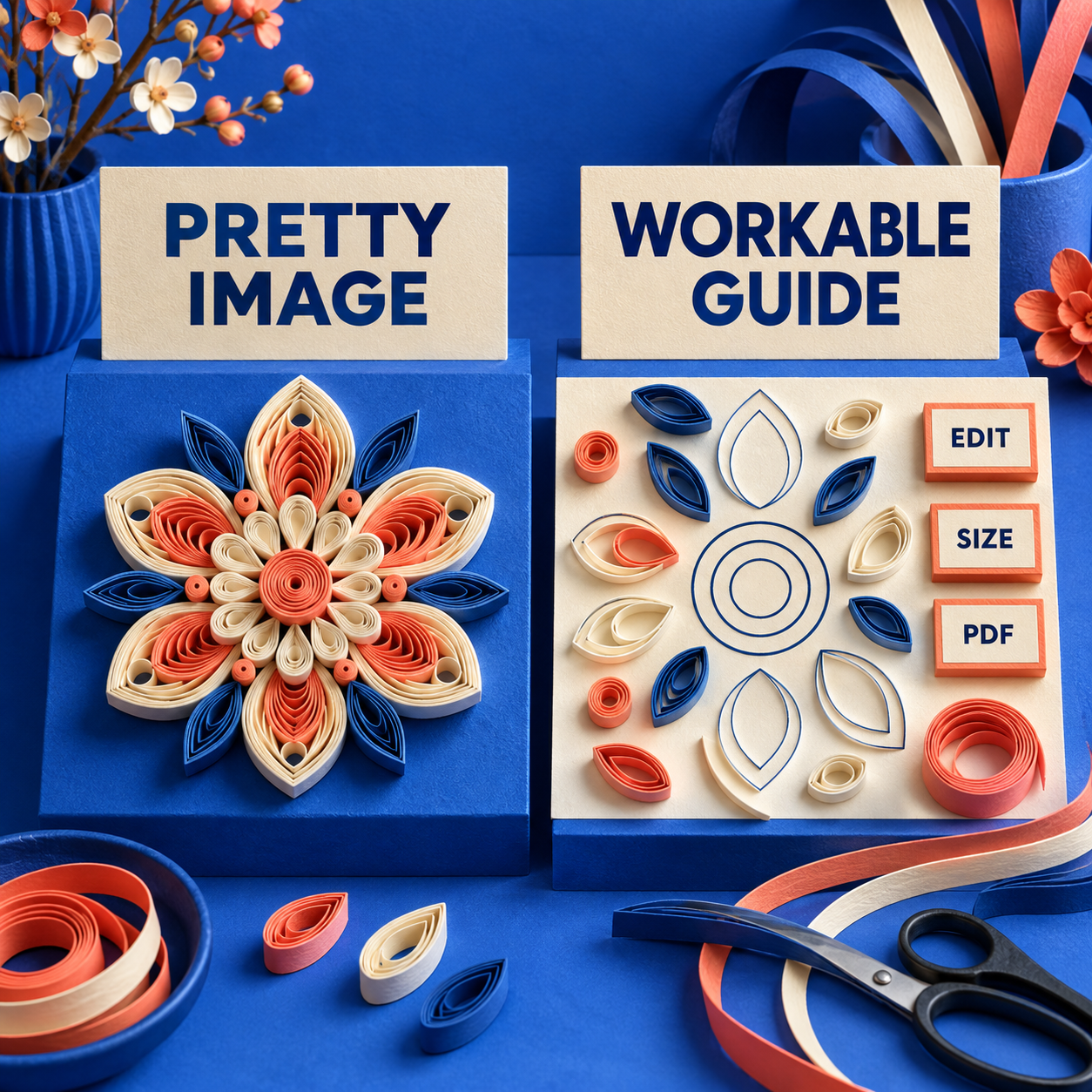
The Before: A Finished-Looking Image
The “before” is a fused decorative flower. Its paper texture, shadows, and dense coils may be convincing, but the petals do not exist as reusable paths. There is no declared physical size, no separate coil-guide layer, and no distinction between an outer boundary and a decorative shadow.
That makes it mood-board-only. It can inform color, density, rhythm, and composition. It cannot reliably tell a maker where to place each strip or tell a cutter which line should be Cut rather than Draw.
All My Quills’ discussion of quilling and artificial intelligence makes the same practical distinction from a practitioner’s side: generative imagery can inspire, yet the result may not qualify as workable quilling without substantial customization. Treat the image as a reference, not as hidden construction data.
The After: A Construction File
The “after” rebuilds the flower from one closed teardrop master repeated into the petal ring. Outer boundaries, coil guides, and reference art are separated. The page has a physical size, the flower has a 3-inch check boundary, and the guide strokes are intentionally light.
The source stays editable. SVG carries the paths into another vector or cutter workflow. PDF carries the print view to a maker who does not own the source application. A small instruction tells the recipient to print at 100 percent and verify the check boundary before cutting paper.
This is not a cosmetic cleanup. It changes the artifact from something to admire into something another person can build from.
Paper Quilling Patterns Free PDF: Export Without Losing Scale
A free PDF is useful only when the scale is deliberate. Export from a real-world document, print at 100 percent, and measure the known boundary. Browser and printer dialogs may default to “fit” or “shrink,” so a check shape is more trustworthy than visual judgment.
Keep the editable SVG or native vector file next to the PDF. If a maker asks for a different flower size, change the source and export again. Repeatedly scaling a PDF in a print dialog hides the design decision and makes instruction pages harder to keep consistent.
The Craft Bar
A pattern is ship-ready when another maker can answer these questions without contacting the author:
- Which lines are outer strip paths, coil guides, and optional reference art?
- What physical size should the main form be?
- Which repeated shapes come from the same master?
- Which file should be edited, and which should simply be printed?
- Can a cutter operator identify Cut and Draw paths without tracing a picture?
If those answers live only in the author’s memory, the file is not finished. If the artwork is a single raster layer, it is an appearance reference. If it has editable paths but no checked physical size, it is still a draft. The craft bar is not photorealism. It is unambiguous construction.
The Ones to Avoid
Midjourney or Deep Dream Generator as the Pattern Master
Generative image tools can help explore color and composition, but a finished-looking coil is not an editable strip path. Use an image as a visual prompt, then redraw the construction in a vector editor. Do not sell the raster image as though it contains placement instructions.
Houdini for a First Quilling Template
Houdini can model complex forms, and a practitioner example shows why that can be intellectually interesting for quilling. It is still the wrong starting point for a printable flower. The software and 3D workflow add complexity without improving the basic SVG and PDF handoff.
Cricut Access When You Only Need Your Own SVG
Cricut Access is a content and feature subscription, not an admission fee for uploading an authored SVG. Start with the Free plan. Subscribe only when the library, subscriber tools, or shopping benefits are worth the price independently of this pattern.
Pattern Marketplaces and Physical Kits as “Software”
A marketplace download can be a useful finished pattern, and a kit can be a pleasant way to learn the craft. Neither helps you create an original editable master. Buy them for content or materials, not as substitutes for design software.
Raster-Only Sketching as the Final File
A raster sketch can be excellent for ideation. It becomes a weak deliverable when the next person must trace its edges, guess its scale, and reconstruct every repeated element. Move the approved sketch into a vector editor before calling the template complete.
Frequently Asked Questions
What is the best tool for quilling paper?
For the physical craft, a slotted tool is usually the easiest way to grip and roll a paper strip, while a needle tool makes a tighter center. For designing the pattern, Inkscape is the best default because it costs $0 and produces editable SVG paths plus printable PDFs.
Where can I find quilling patterns?
Start with a reputable printable library such as The Papery Craftery for practice projects. When you need to resize, alter, or sell an original design, use an SVG source rather than relying on a screenshot or flattened PDF.
Is quilling an expensive hobby?
It does not have to be. The core materials are narrow paper strips, glue, and a simple rolling tool, and both Inkscape and Affinity currently provide the relevant design capabilities at $0. Costs rise when you add specialty paper, commercial cutters, or paid software, not because the basic technique requires them.
What is the price of a quilling tool?
It varies by tool and retailer. As one current reference rather than a market-wide estimate, Hobby Lobby listed reverse-action quilling tweezers at $2.49 on September 18, 2026. A slotted rolling tool, needle tool, comb, and tweezers serve different purposes, so compare the item type before comparing prices.
Does Hobby Lobby carry quilling supplies?
Yes, its online paper-craft tools category currently mentions quilling and lists reverse-action quilling tweezers. Store assortment and availability can change, so check the local listing before making a trip.
Where can I buy a quilling tool?
Craft stores and specialist paper-quilling retailers sell slotted tools, needle tools, combs, and tweezers. Choose the tool by the action you need: rolling, shaping, spacing, or placement. Software is separate and creates the printed guide rather than rolling the paper.
How to make your own quilling tool?
The simplest improvised approach is to roll around a toothpick or sturdy needle rather than cutting an unsafe slot into a makeshift handle. A purpose-made slotted tool is inexpensive and grips the strip more predictably, but it is not required to try the technique.
What is a quilling tool called?
The common rolling tools are called a slotted tool and a needle tool. Other useful tools include quilling combs for spaced loops, tweezers for placement, and sizing guides for consistent coils.
How to quill paper without a quilling tool?
Wrap the end of a strip around a toothpick or sturdy needle and roll slowly while keeping the edges aligned. The center may be looser than one made with a slotted tool, so treat that difference as part of the handmade result rather than over-tightening the paper.
Where can I find free quilling templates to print?
The Papery Craftery maintains a free printable template library. For any downloaded PDF, print at 100 percent and measure a known reference when one is supplied. If no scale check exists, make a test print before cutting a full set of strips.
Which quilling templates for beginners are easiest to edit?
Choose simple SVG files with closed shapes, separate guide layers, and very few nodes. A beginner-friendly flower or monogram is easier to change than a dense raster illustration because each path has a clear job and repeated modules can stay consistent.
- Last Updated
- Sep 18, 2026
- Category
- Design
Prefer this site in Google


Mark omidsaffari.com as preferred and Google lifts it in Top Stories, AI Overviews and AI Mode for you.
WeaveIt Pro vs pixeLoom
Compare WeaveIt Pro and pixeLoom for prices, current Windows and Mac builds, WIF handoffs, trial limits and Dobby package costs.Sep 18, 2026Design
Knit Visualizer vs Stitchmastery
Compare Knit Visualizer and Stitchmastery on computer compatibility, chart editing, written instructions, exports, price, and migration work.Sep 18, 2026Design
How to Project Sewing Patterns With Inkscape
Project a sewing pattern with Inkscape: import the PDF, preserve scale, set calibration, and check the projected pattern before cutting.Sep 18, 2026Design
KnitBird Knitting Software Cost
KnitBird is free, but support has ended. Check activation, Adobe AIR, old paid-license wording, and compatibility before installing.Sep 18, 2026Design
PDFStitcher Review
Review PDFStitcher for joining tiled sewing PDFs, preserving size layers, fixing overlaps, and preparing a correctly scaled pattern.Sep 18, 2026Design
WeavePoint 9 Review for Loom Control
Review WeavePoint 9 for manual pick tracking and electronic loom control, including driver compatibility, Windows requirements and upgrade checks.Sep 17, 2026Design
Best Software for Punch Needle Patterns
Compare punch needle pattern software for clean outlines, photo conversion, color control, mirrored transfers and full-size printing.Sep 17, 2026Design